
Platforms
Overview
Admin > Platforms lists the handles connected to your account, such as phone numbers, Apple Messages business IDs, WhatsApp numbers and RCS Business Messaging agents. The All Platforms tab shows every handle. Each platform also has its own tab: Apple Messages, SMS, WhatsApp, RCS Business Messaging, Voice, Facebook and Web Chat.
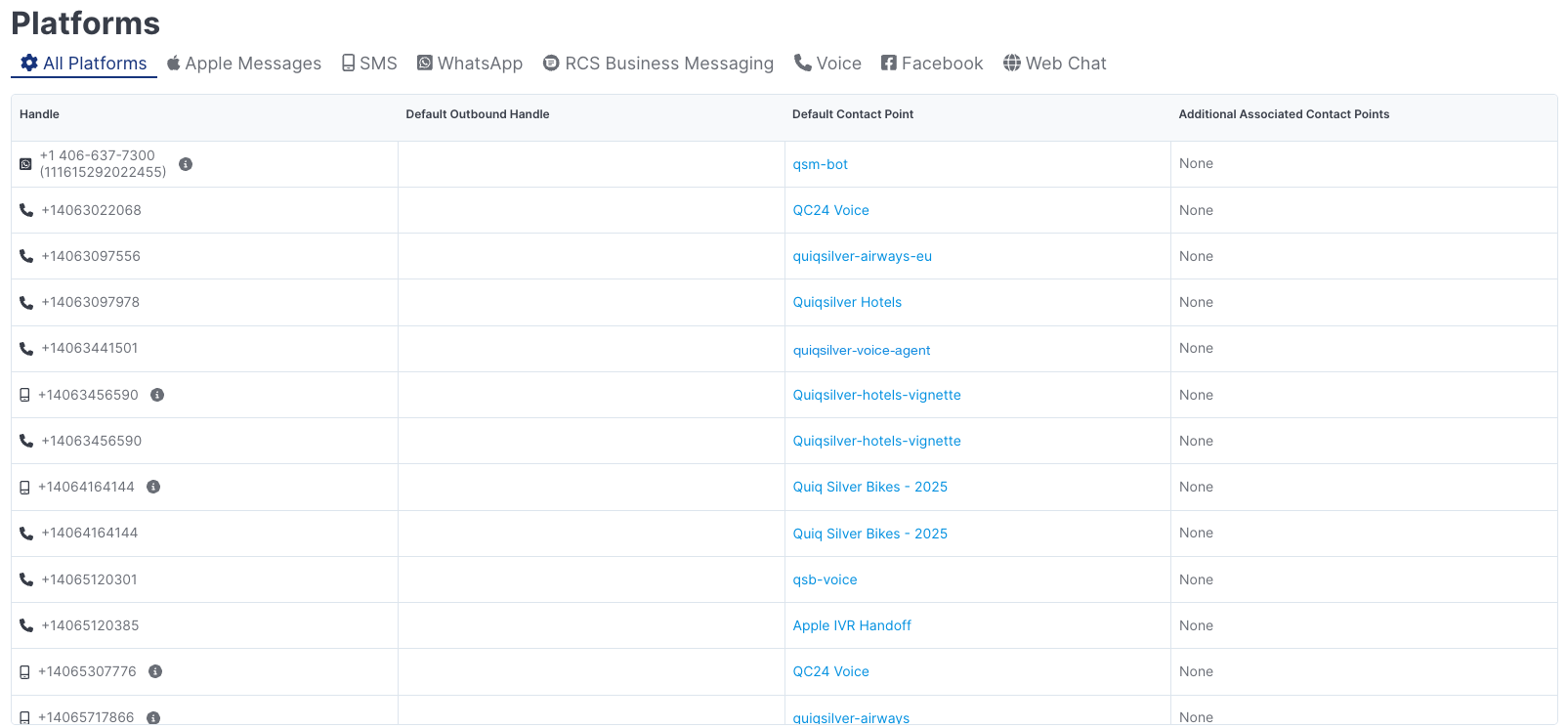
Each row is one handle, with an icon for its platform:
- Handle: the phone number, business ID or agent ID customers reach you on.
- Default Outbound Handle: a checkmark on the platform's default handle.
- Default Contact Point: the contact point conversations on this handle go to. Click it to open that contact point.
- Additional Associated Contact Points: other contact points that can also use this handle.
To add a handle, or to change which contact points can use it, contact your Quiq account team.
Voice
The Voice tab has an Audio Clips section above the list of voice numbers.
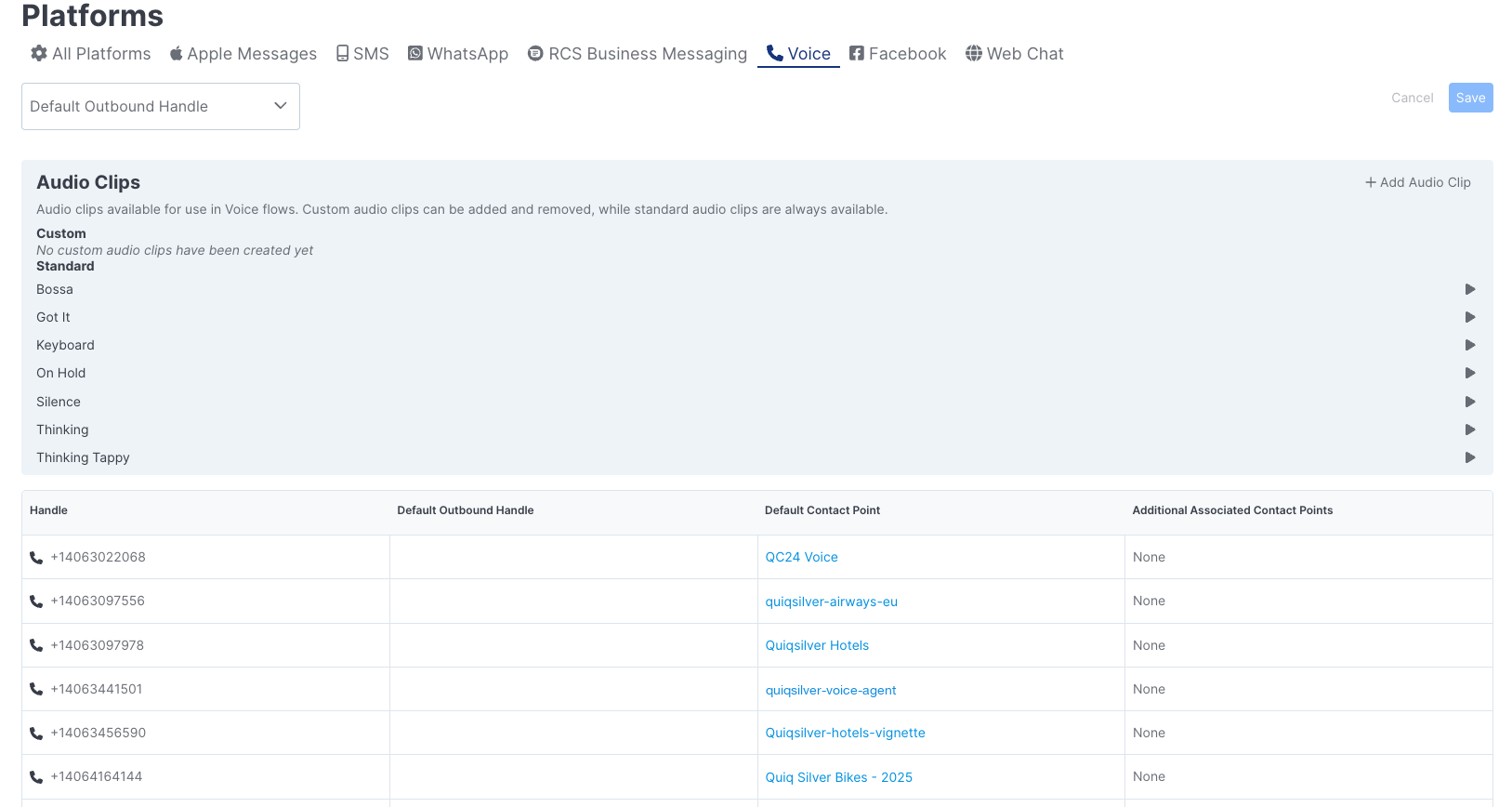
Audio Clips lists the clips your voice AI agents can play in their flows. Standard clips, such as On Hold and Thinking, are always available. To add your own, click + Add Audio Clip. Your clips are listed under Custom, where you can remove them. Click the play button next to a clip to listen to it.
Test Links
Apple Messages, RCS Business Messaging, WhatsApp and SMS handles have an info icon next to the handle, labeled Platform testing link. Click it to open Platform Link, which shows a link and a QR code that open a conversation with that handle on your phone.
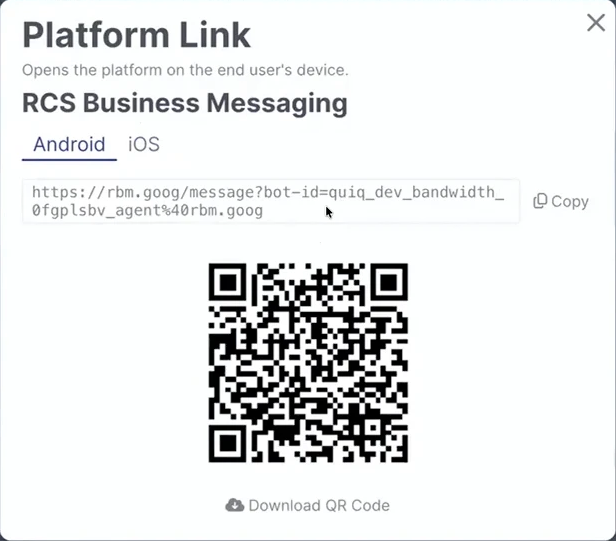
- Click Copy to copy the link, or Download QR Code to save the QR code as a PNG.
- For RCS Business Messaging, use the Android and iOS tabs. Each has its own link.
These links are for testing. To bring customers into a conversation from your website or printed materials, use a Conversation Starter link or QR code.
Updated 2 days ago