
Dashboards
Overview
Insights supports multiple configurable dashboards, giving administrators the ability to tailor analytical views for different audiences within their organization. A dashboard can be built for a specific team, line of business, or role — with each group seeing exactly the metrics and data that are relevant to them. Alternatively, a single group of users might have access to several dashboards, each organized around a different type of information.
A dashboard is a collection of reports displayed in individual Cards. The Summary and AI Agent Goals tabs are examples of dashboards. The Dashboards tab provides a list of other dashboards that are available to the user.
Accessing Dashboards
The Dashboards tab appears under Insights, just to the right of the Summary tab. Admin users always see this tab. Staff Admins and Managers see it only when they have been granted access to at least one configured dashboard.
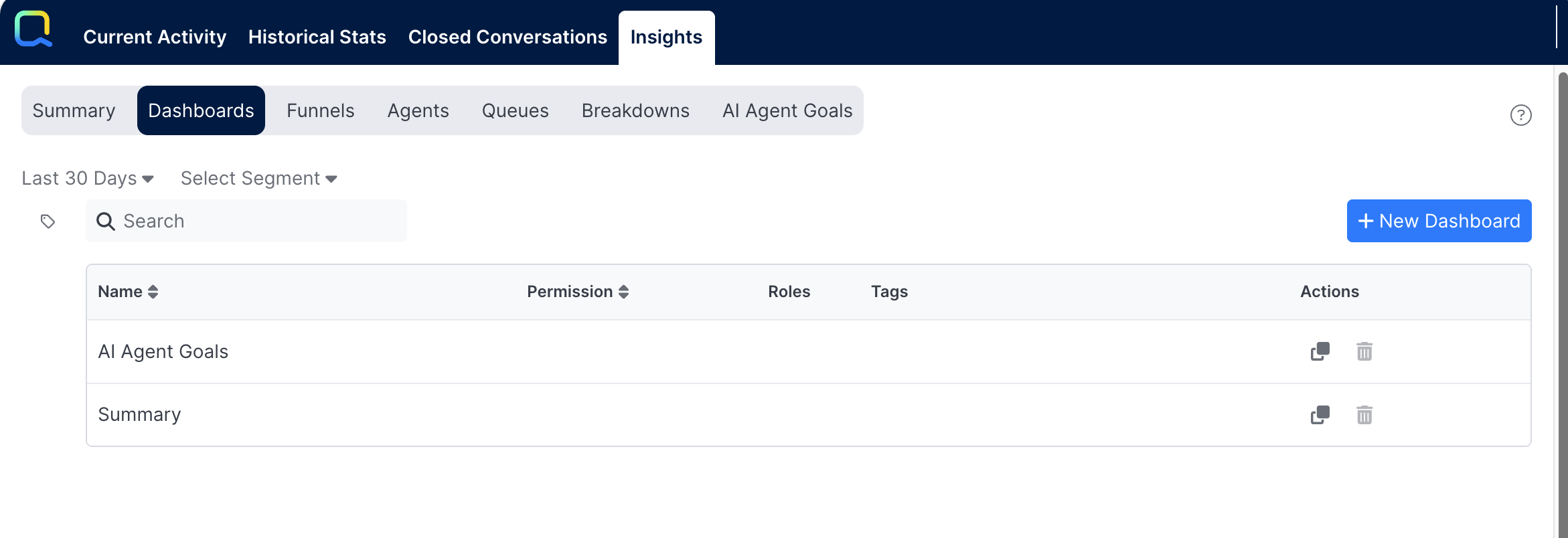
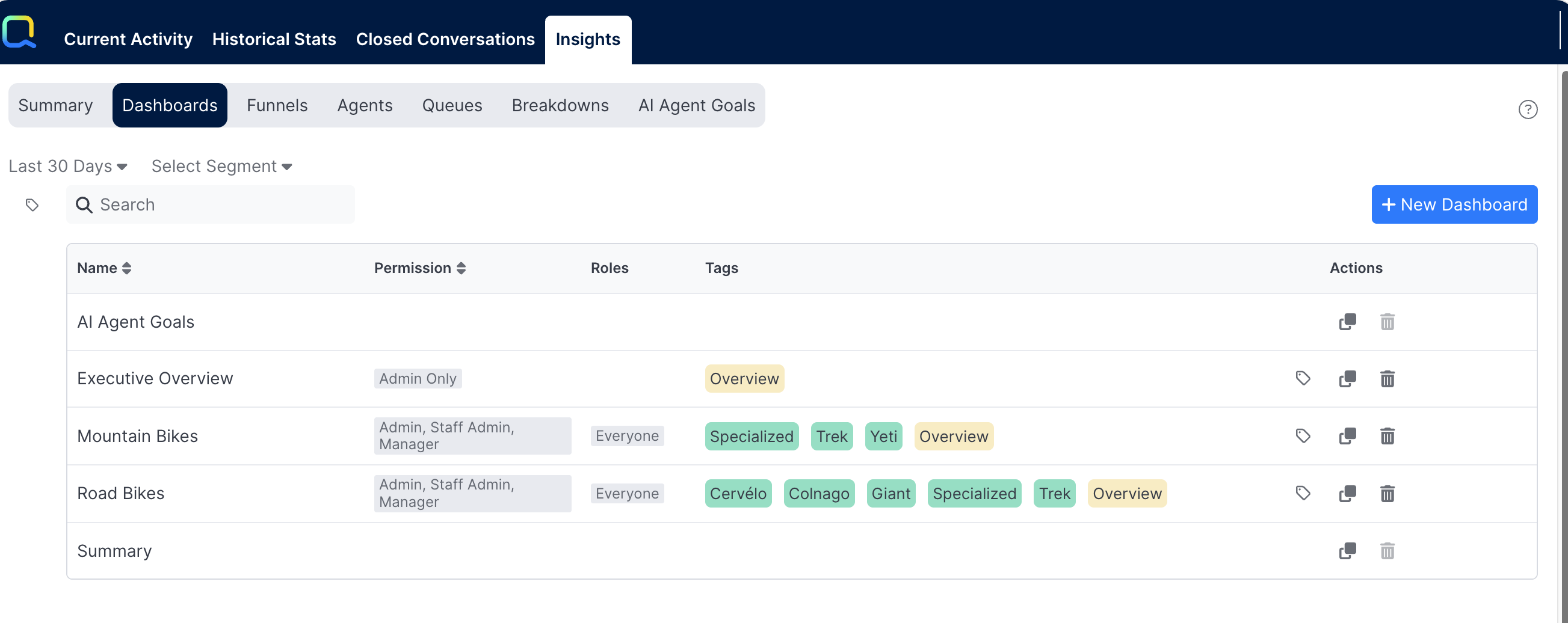
Admins see all configured dashboards and have an Actions column with options to Duplicate or Delete each one. Staff Admins and Managers see only the dashboards they have been granted access to based on the permission levels and role restrictions set by an admin, and they do not have access to the Actions column.
Capabilities by Role
Admin users and Staff Admins and Managers interact with the Dashboards feature differently. Admins always see the Dashboards tab and can create new dashboards, view all configured dashboards in the landing page list, and edit any dashboard with full access to sections, cards, layout, permissions, and the Global Segment. Staff Admins and Managers can only access what was explicitly granted to them, and can never save changes.
Staff Admins and Managers see the Dashboards tab only when they have been granted access to at least one dashboard. Their landing page shows only the dashboards configured for their permission level and role, and within a dashboard they see only the cards they have been explicitly granted access to. They can change the date range, apply runtime segments, view conversation drilldowns and export them. They cannot create dashboards, edit any section or card, modify layout, copy or paste cards or sections, or see the Global Segment.
Creating and Editing a Dashboard
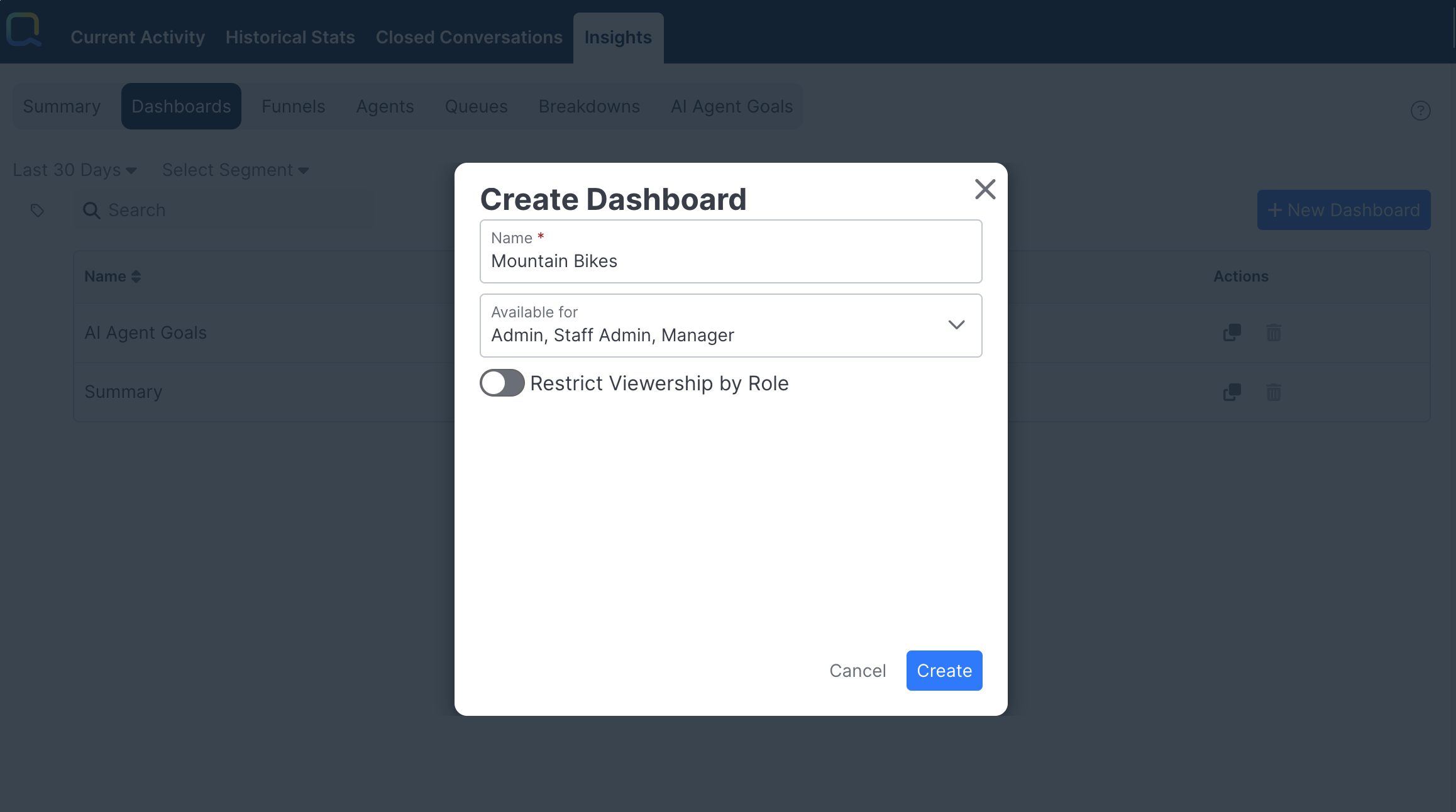
Admin users create a new dashboard by clicking the + New Dashboard button on the Dashboards landing page. This opens the Create Dashboard modal dialog, where the admin provides a name and configures permissions before the dashboard is created.
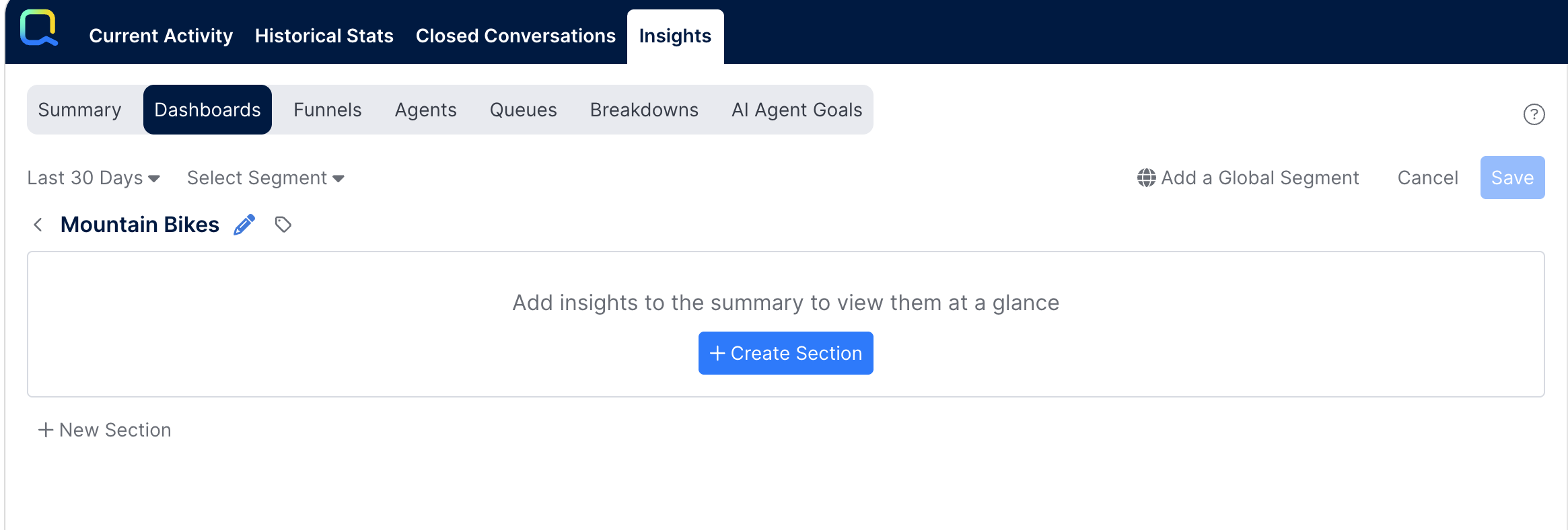
When a dashboard is first opened it is empty, and the admin is prompted to create the first section using the + Create Section button. Additional sections can be added at any time with the + New Section button at the bottom of the dashboard. Sections can be reordered by dragging them to a new position.
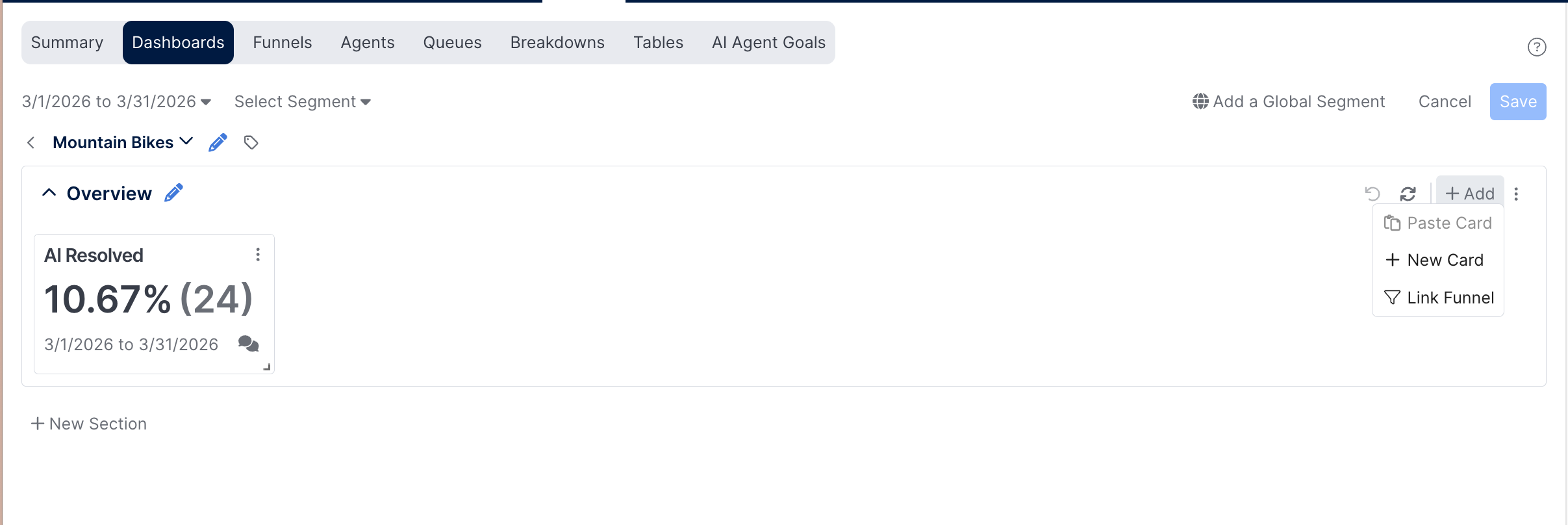
Each section has a +Add button in its upper right corner for adding content. Clicking it reveals options to add a New Card, Link a Funnel, or — once a card has been copied — Paste a Card. Cards and funnels are created and configured the same way as in the Summary and AI Agent Goals dashboards.
Cards can be dragged to new positions and resized at any time.
Each section's three-dot Options menu contains options to Copy Section and Delete Section. To edit a section title, click the pencil icon that appears next to the section name — this opens a modal dialog where the title can be updated.
Copying and Pasting Cards
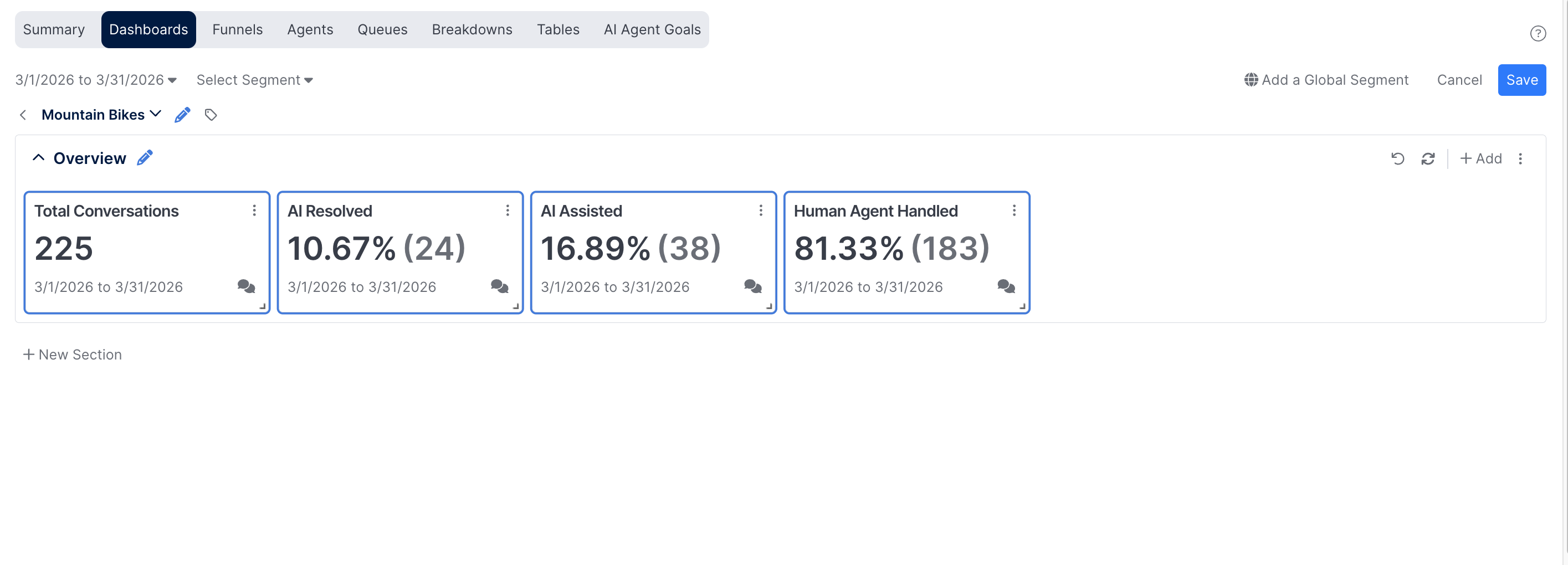
Any card can be copied and pasted across sections and dashboards, including between custom dashboards and the standard Summary and AI Agent Goals dashboards. To copy a card, click it to select it (it is outlined in blue when selected), then press Ctrl+C (or Cmd on Mac) or choose Copy from the card's Options menu. Multiple cards can be selected at once by holding Ctrl while clicking each one, then pressing Ctrl+C to copy them all.
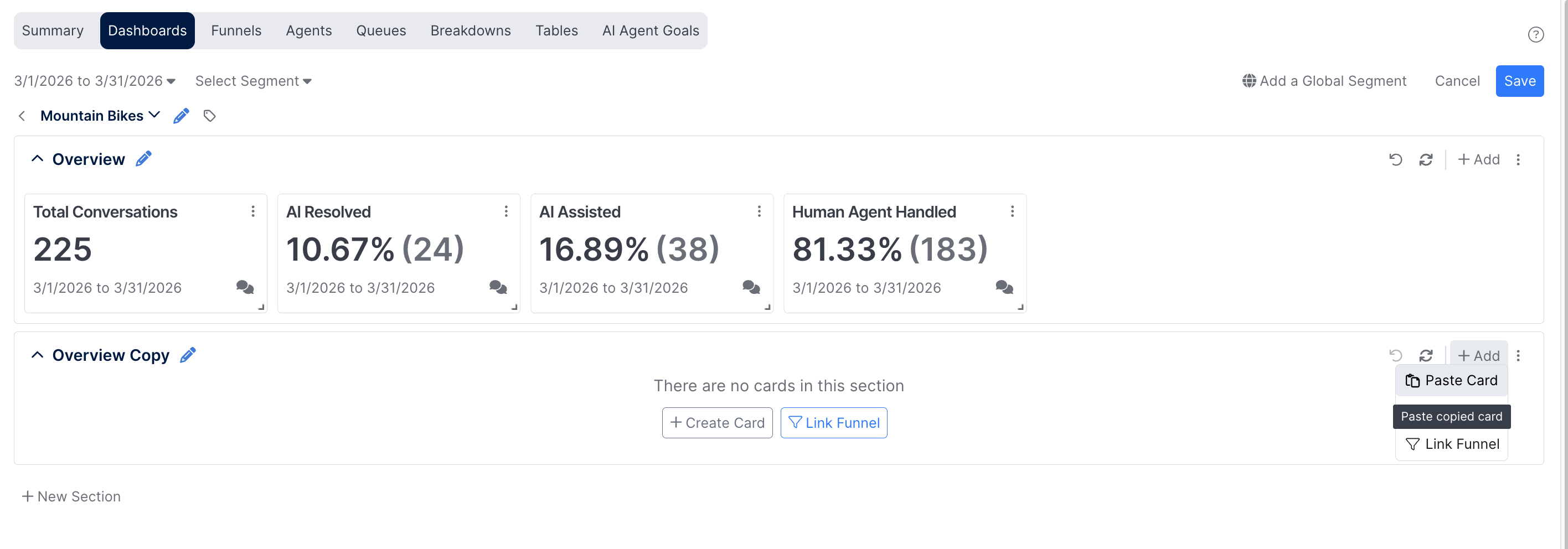
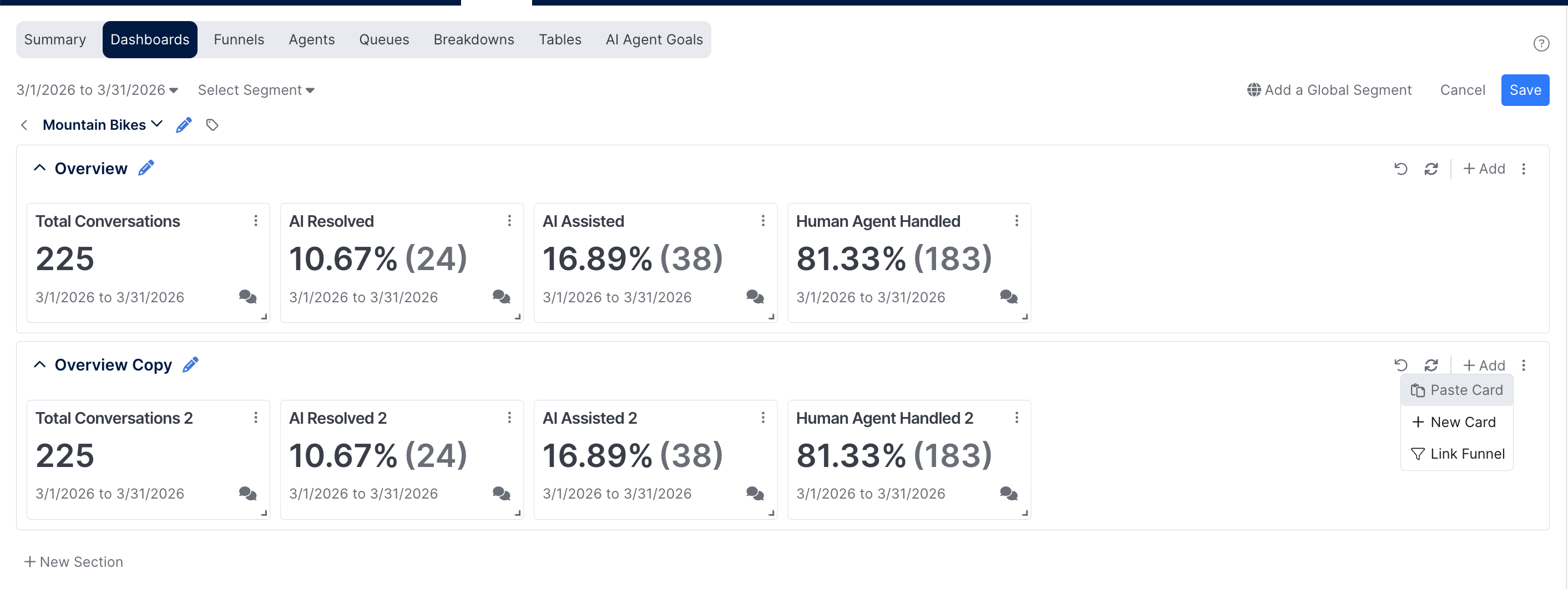
To paste, navigate to the destination section and press Ctrl+V or select Paste Card) from the section's +Add menu. The Paste option is disabled until a card has been copied. Whatever was most recently copied stays on the clipboard until another card is copied.
Copying and Pasting Sections
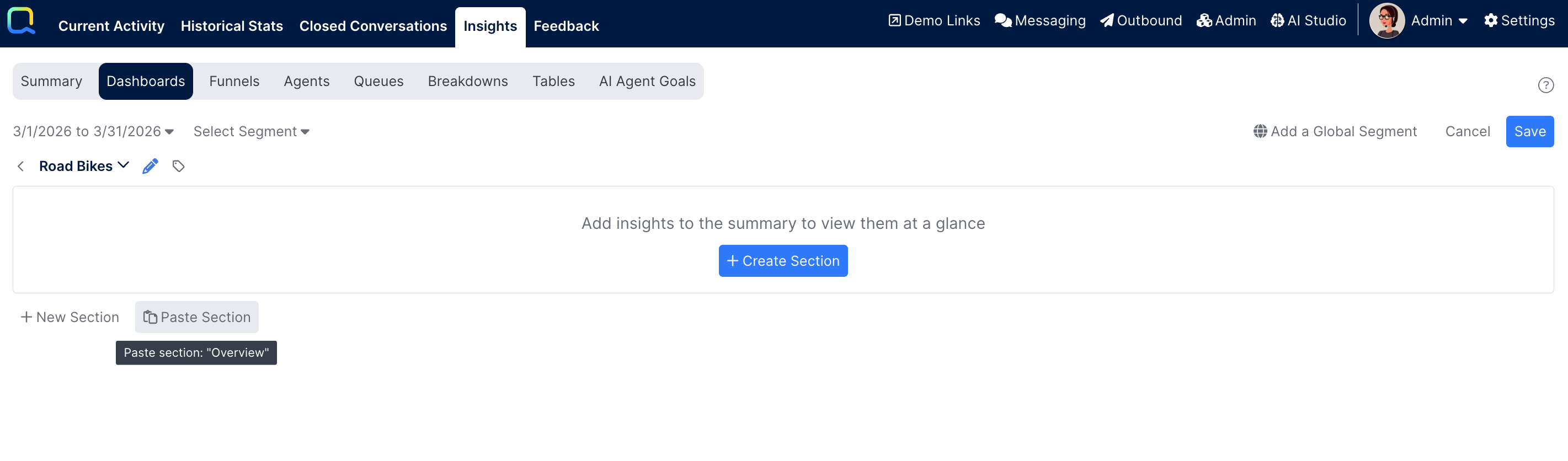
Entire sections can be copied and pasted, either within the same dashboard or to a different one. Selecting Copy Section from the section's Options menu copies the section and all of its contents to the clipboard. Once a section is copied, a Paste Section button appears at the bottom of any dashboard.
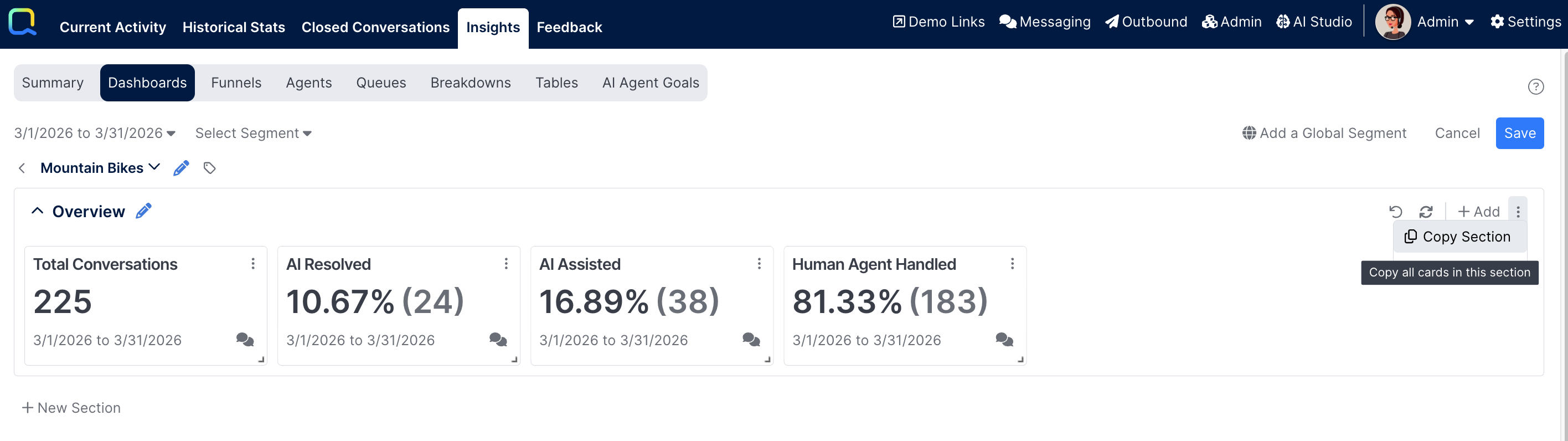
Clicking Paste Section adds the copied section to the end of the dashboard, where it can then be reordered by drag and drop. When pasting the section, card names may have a number appended but are otherwise configured identically to the originals, preserving steps, permissions, and all other settings. Pasting to a different dashboard provides a straightforward means of using an existing section as a template and adjusting criteria for a new context.
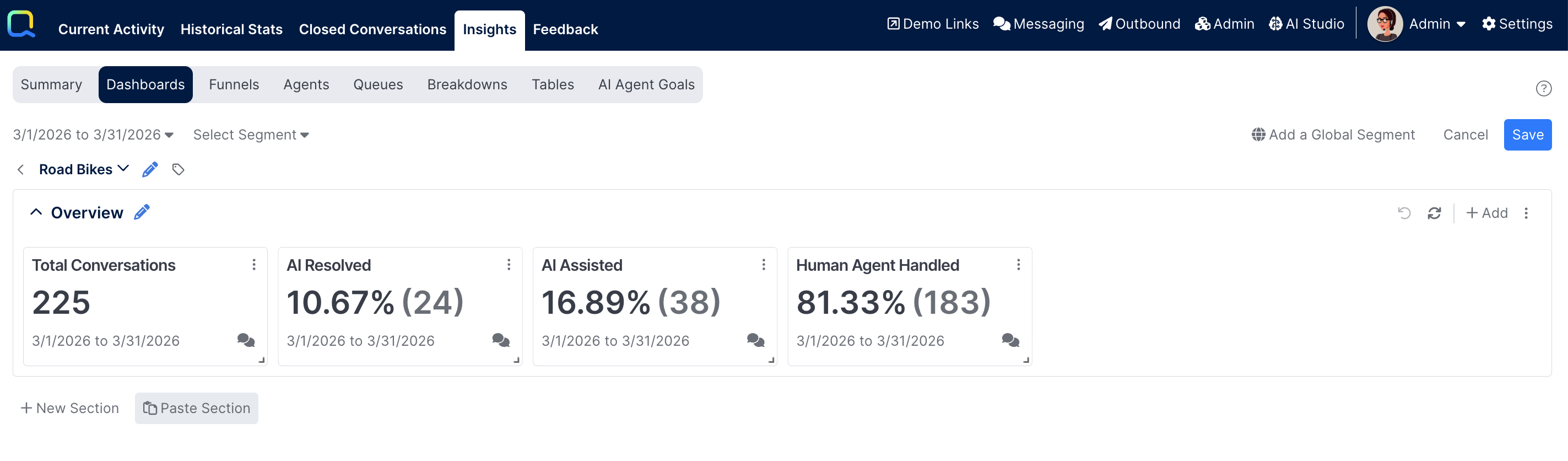
The section clipboard is independent of the card clipboard — a user can have both a copied card and a copied section available simultaneously, each used by its respective Paste action. If a section with unsaved changes is copied, the paste reflects those pending changes rather than the last saved state.
Undo
Each section includes an Undo button that tracks changes made during the current editing session. Undo covers formatting changes such as moving, reordering, and resizing cards, as well as card-level changes including adding, editing, and deleting cards. It does not revert changes to the section title, pasted sections (deleting the section achieves the same result), or copy actions (the clipboard is unaffected by Undo). Only changes made since the dashboard was opened or last saved can be undone.
Applying a Global Segment
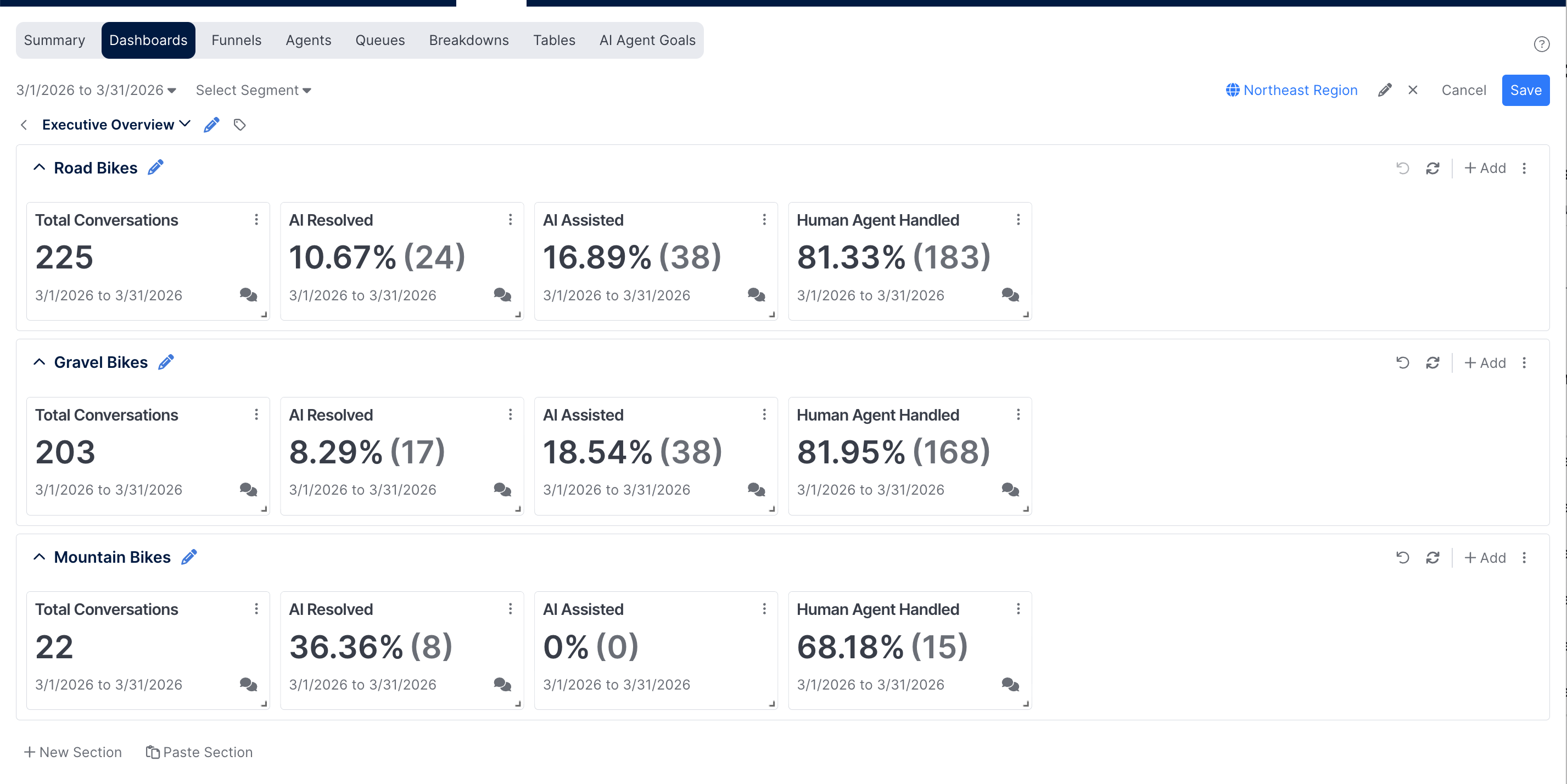
Administrators can lock in a segment as part of a dashboard's definition using the Global Segment feature. An Add a Global Segment button is available in the upper right corner and opens the segment selector. The admin can choose an existing segment or create a new one with +Create New Segment.
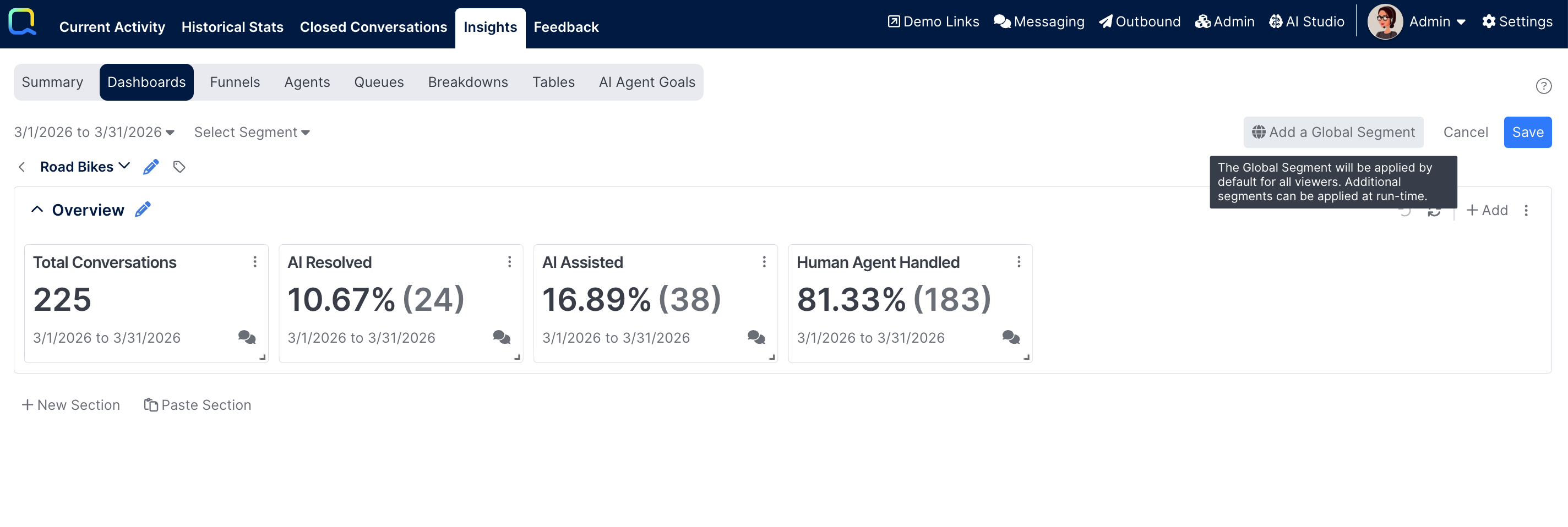
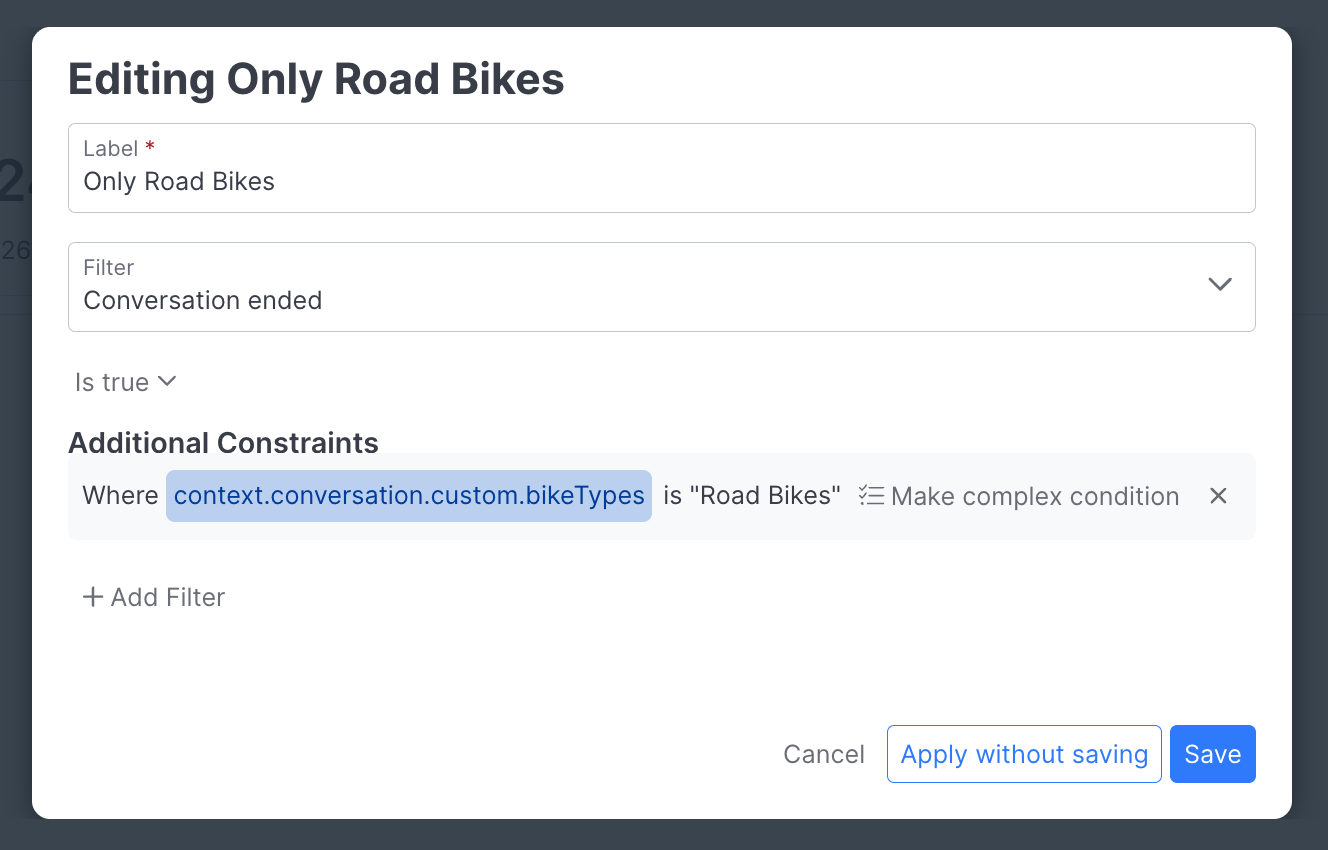
Once selected, the dashboard refreshes with the segment applied across all expanded sections, and the button updates to show the name of the active segment.
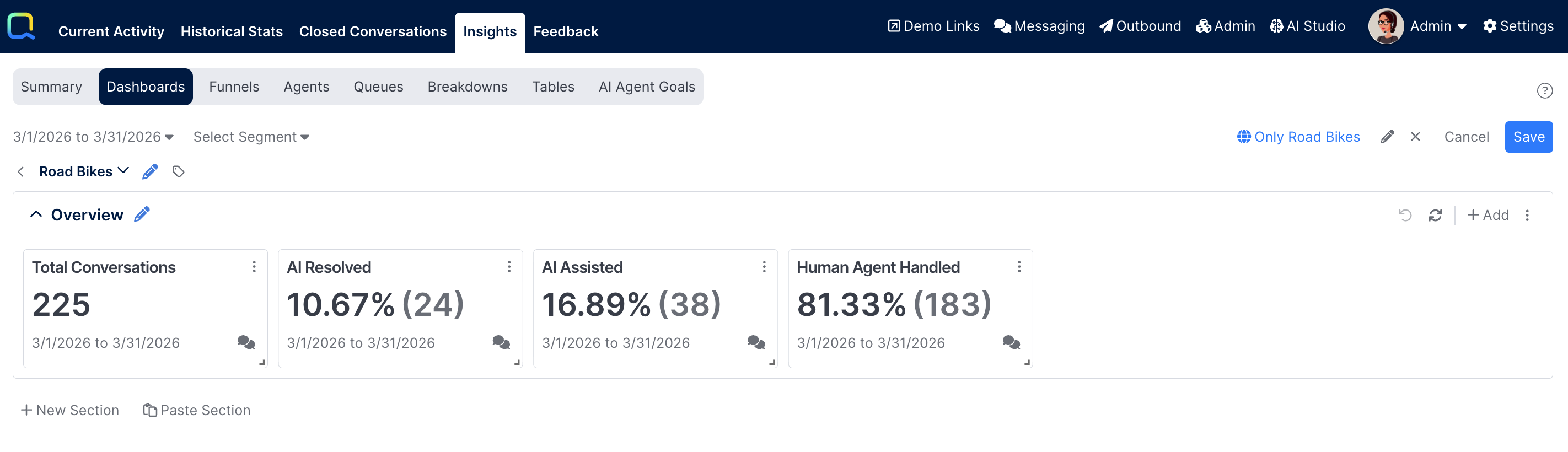
The Global Segment is saved as part of the dashboard definition, so every user who opens the dashboard will have it applied automatically. Staff Admins and Managers cannot see or modify the Global Segment — they simply experience the filtered results. Any user can still apply additional segments at runtime using the standard segment selector next to the date range. When both a Global Segment and a runtime segment are active, results must satisfy the criteria of both simultaneously.
Segments are applied at the contact level — identifying customers who performed a defined action within the selected date range, then limiting card results to only those customers. For linked dataframe cards, segment filtering may not be supported due to the complexity of their underlying event types. As with Summary and AI Agent Goals, a warning indicator is displayed on any card where a segment cannot be applied.
Saving Changes
After making changes to the dashboard, the admin user must explicitly select the Save button in the upper right corner to save them. Selecting Cancel will discard any changes. Selecting either Save or Cancel will keep the dashboard open. The admin must select the <button or the Dashboards tab in order to return to the list of dashboards.
Managing Dashboards
Duplicating a Dashboard
Any dashboard can be duplicated by an admin user from the Actions column on the landing page. The Duplicate Dashboard modal opens with a default name of Copy of Original Name and permissions pre-populated from the original. Clicking Create generates the new dashboard and opens it immediately.
Deleting a Dashboard
Clicking the trash icon in the Actions column opens a confirmation prompt asking whether to delete the dashboard. Confirming removes it from the list. Deleted dashboards cannot be re-enabled once deleted.
Navigating Between Dashboards
When a dashboard is open, clicking < will navigate back to the Dashboards landing page.
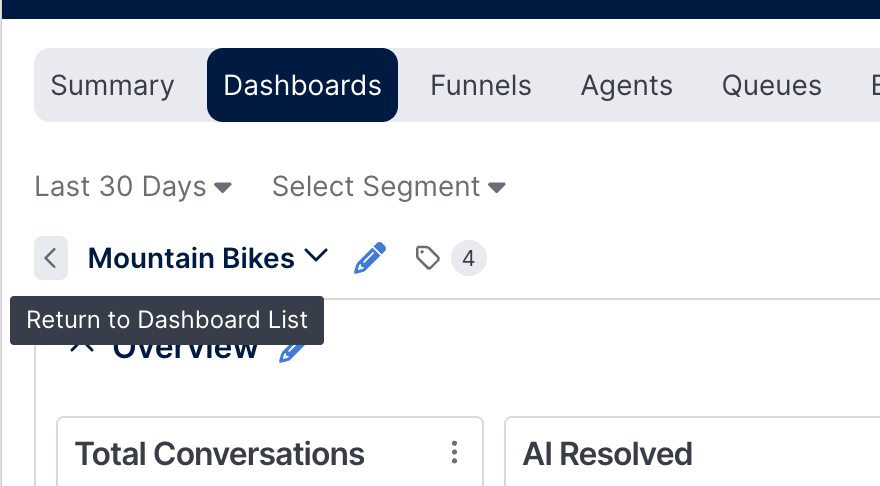
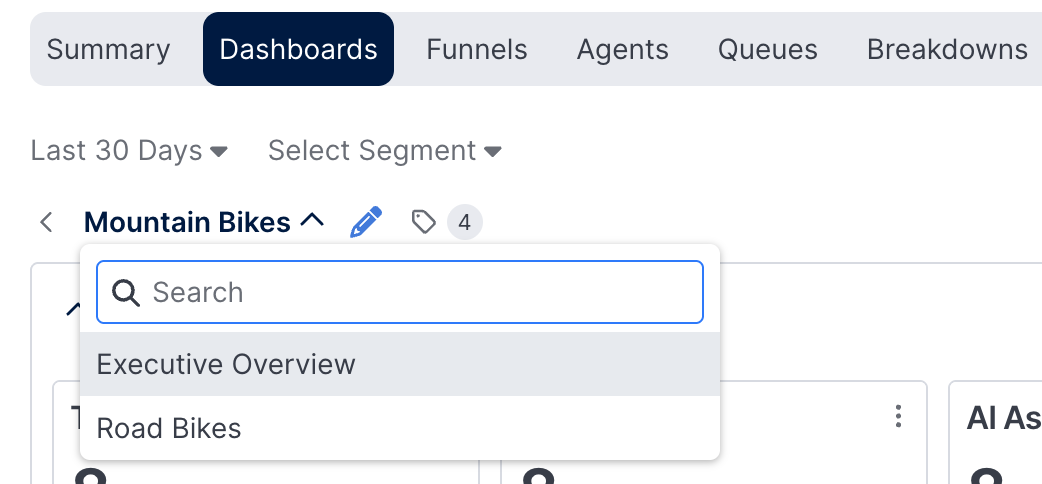
A ∨ button next to the dashboard name allows switching directly to another dashboard without returning to the list first. This button is not shown if the user does not have access to any other dashboards. The standard Summary and AI Agent Goals dashboards do not appear in this navigation list.
Summary and AI Agent Goals Dashboards
The standard Summary and AI Agent Goals dashboards appear in the Dashboards list for admin users. Selecting either from the list navigates to the corresponding sub-tab rather than opening it within the Dashboards area.
Both dashboards can be duplicated from the Actions column. They cannot be deleted nor can they be edited from within the Dashboards tab.
Updated 6 months ago