
Cards
Overview
Cards provide a quick view of insights at a glance. There are a couple key components of a card:
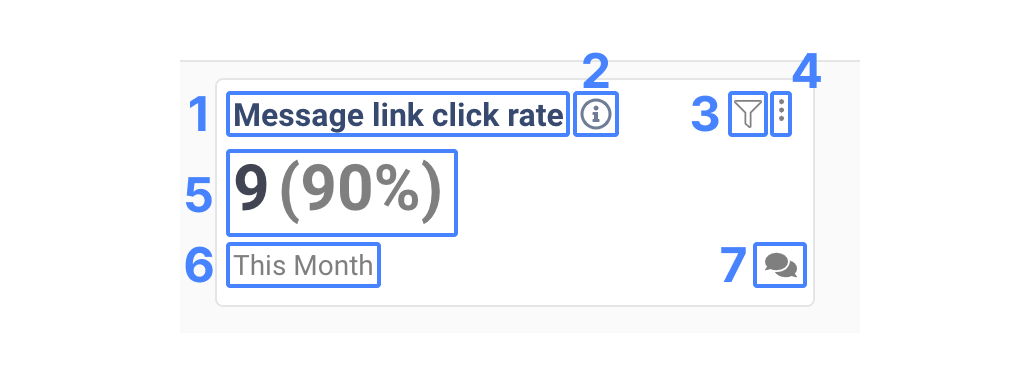
1. Card Label: This is defined during the Card creation process.
2. Tooltip: An optional tooltip that can be added to a Card.
3. Funnel Link: Denotes that a Card is linked to a specific Funnel. Clicking on the icon will take you to the Funnel. If this icon is not present, the Card is not linked to a Funnel.
4. More menu: Provides the ability to edit, delete, and copy a card.
5. Primary Number: The value the Card is configured to return
6. Date Range: The date range that the primary number is calculated for
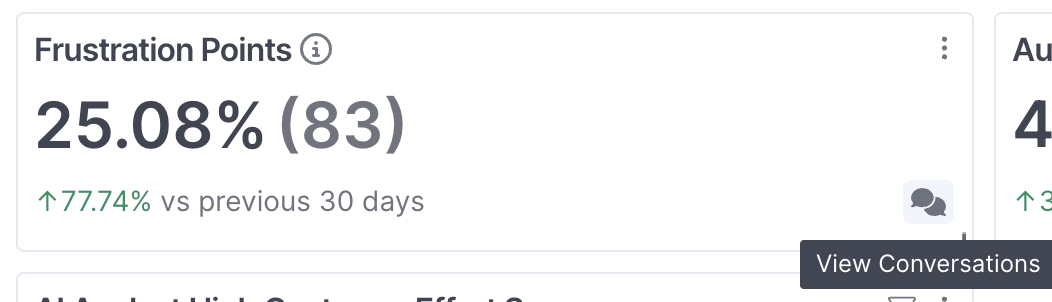
7. View Conversations: Clicking this icon will open the conversations behind the Card.
Creating Cards
There are two ways to create a card:
1. Create a new Card from scratch.
2. Linking to a Funnel that is already created.
Linking a Funnel
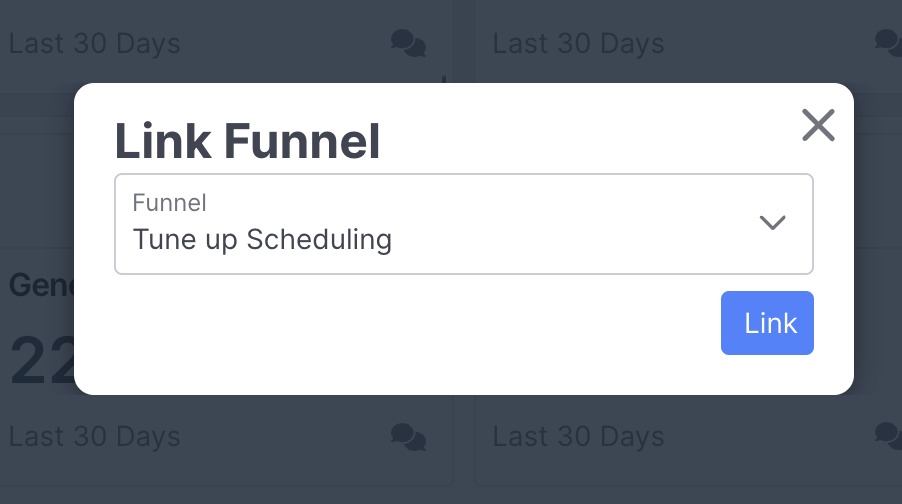
Selecting the Link Funnel button when creating a new card will prompt you to select an existing funnel:
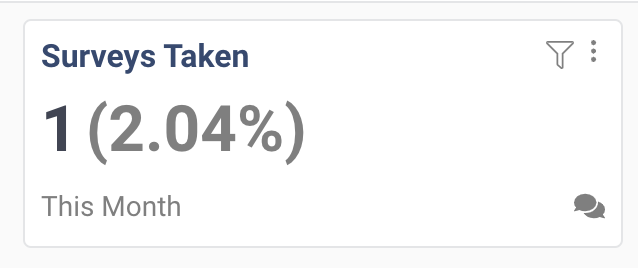
Once linked, the Card will display the Funnel name, the number of Journey's that reached the final step, as well as the completion percentage:
Creating a New Card
Creating a Card from scratch is similar to creating a funnel. You can either choose from a template or start with an empty Card.
Every Card has a title, an optional description, and a set of permissions that control who can view it. You also choose a Card Type:
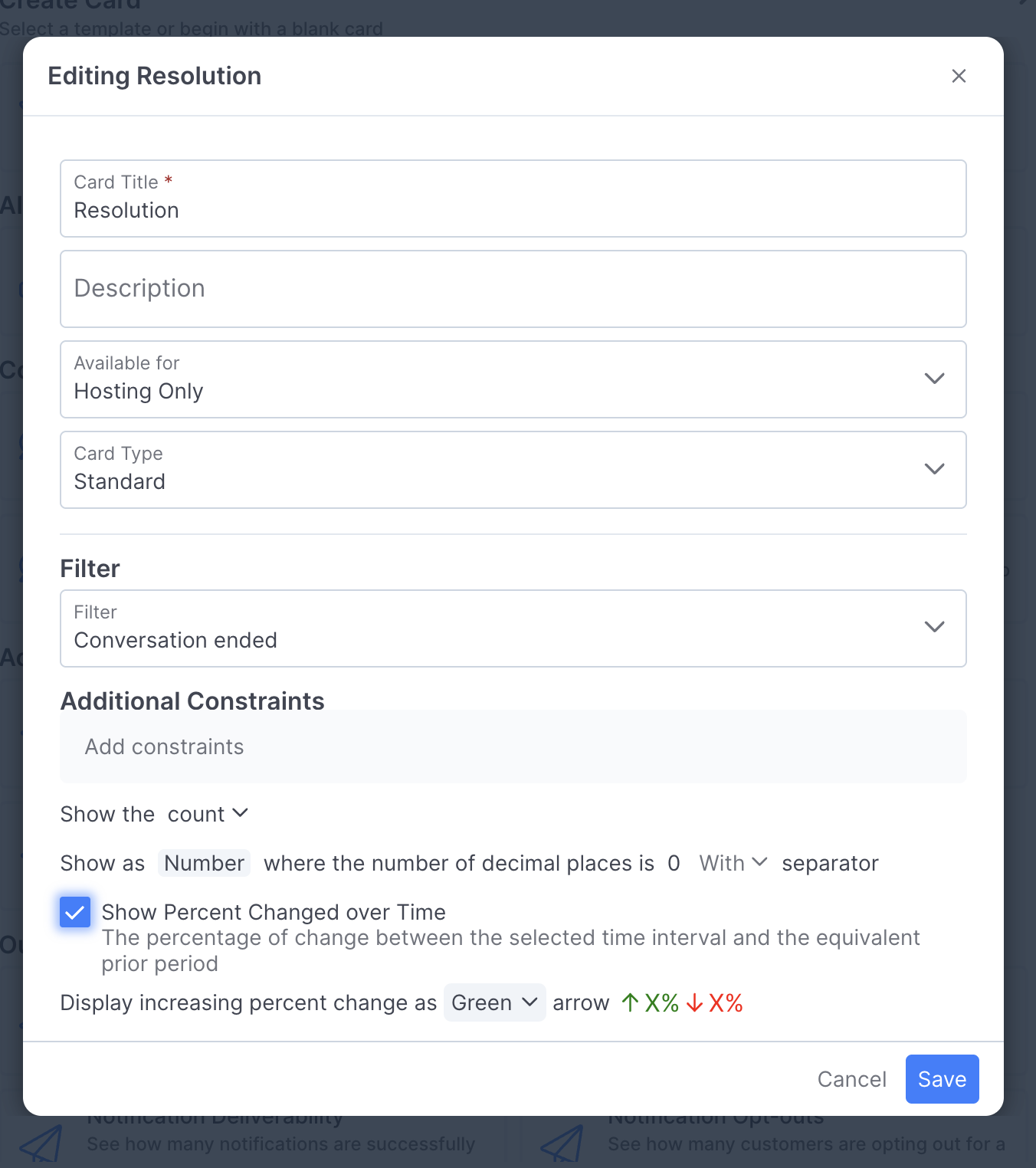
- Standard: Returns a single value calculated from one event type. Use this to measure a value across conversations, such as average handle time, total messages sent, or 90th percentile response time.
- Multi-step: Counts the conversations or customers that completed an ordered sequence of steps. Use this for journeys and step-based funnels.
Once a Card is saved, its type is fixed. Card Type does not appear when you edit an existing Card.
Standard Cards
A Standard Card is defined by four settings:
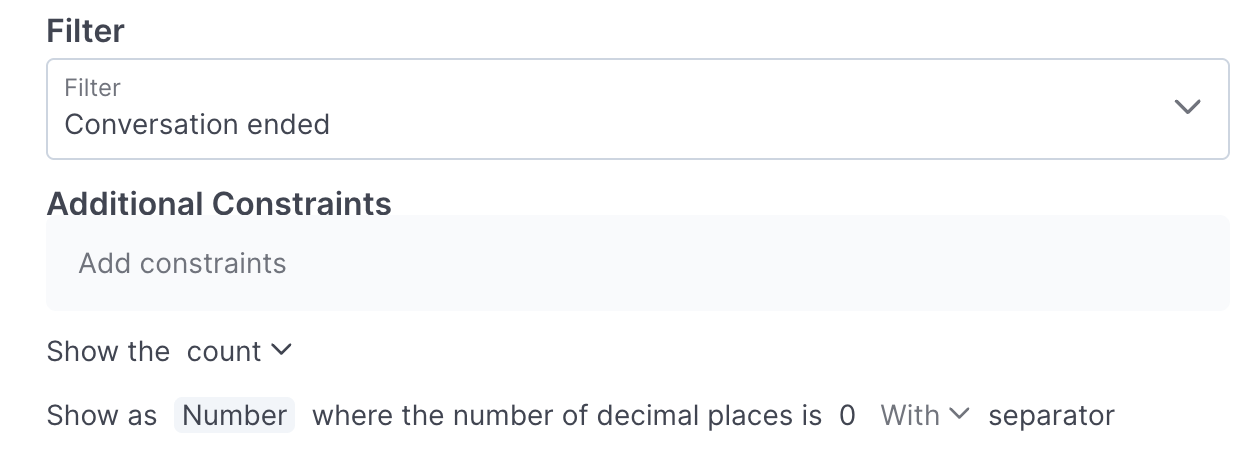
1. Event filter: The event type used as the data source. This defaults to Conversation ended.
2. Additional constraints: The data conditions that must be present for the event to count, if any.
3. Value: The value the Card returns. Choose a function and, for most functions, the field to apply it to. This defaults to count.
4. Format options: The units and formatting applied to the returned value, such as number or duration. The default changes based on the Value you define.
The following functions are available:
- Count: The number of matching events.
- Count distinct: The number of unique values for the selected field.
- Sum: The total of the selected field across matching events.
- Average: The mean of the selected field across matching events.
- Percentile: The value at the percentile you specify, such as the 90th percentile response time.
- Rate: The share of events of that type that matched your constraints.
Count and Rate work without a field. Every other function requires you to select a property. Until you do, Select Property is highlighted in red and the Create or Apply button stays disabled. Once a property is set you can change it, but you cannot clear it.
How Rate is calculatedRate compares the number of events that matched your constraints to the total number of events of that type. If you have not defined any constraints, the Rate is always 100%.
Default formatsFormat defaults follow the function and field you select:
- Count, Count distinct, and Sum default to Number with 0 decimal places.
- Rate defaults to Percent with 2 decimal places.
- For all other functions, the default depends on the property. A duration property defaults to Duration in minutes, and a numeric property defaults to Number with 2 decimal places.
You can change constraints without affecting the Value and format settings, and you can change the Value and format settings without affecting constraints.
Multi-step Cards
A Multi-step Card counts conversations or customers that completed a sequence of steps in order. Each Card needs at least one step:
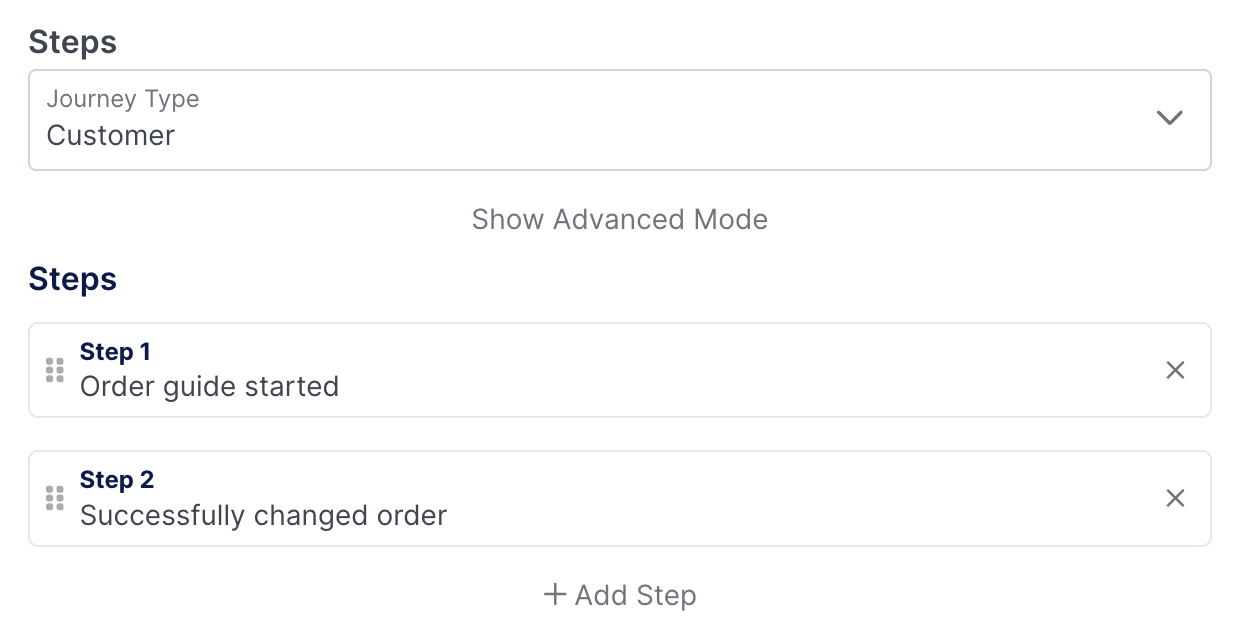
- Select a Journey Type to set whether the Card counts conversations or customers.
- Use Show Advanced Mode to change the window width for the steps.
- Once you define at least two steps, you can select Show Rate as Primary Value.
- You can edit, insert, and reorder steps at any time.
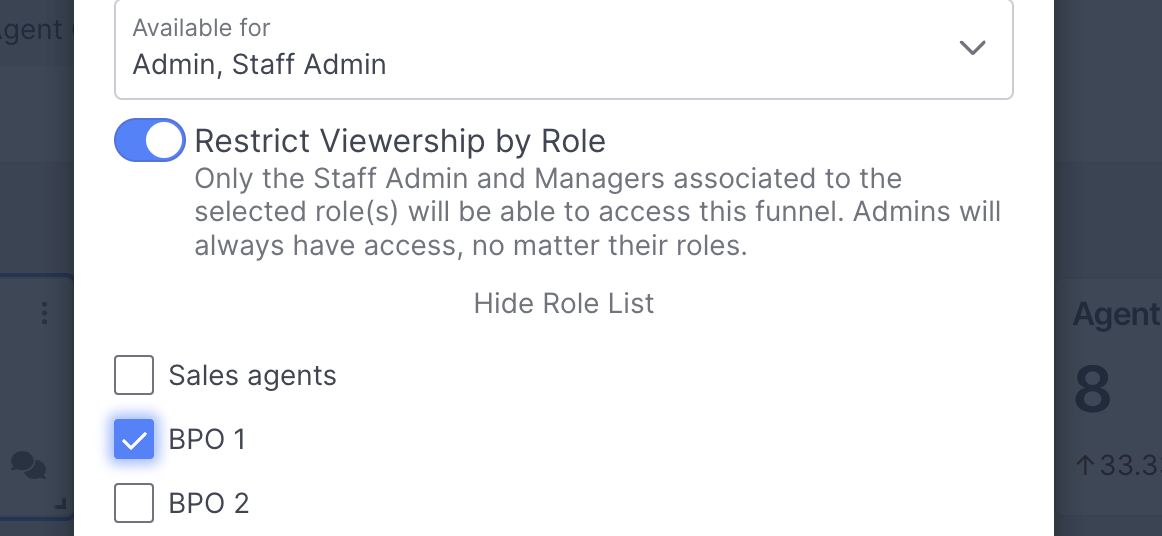
Card Availability
For each card, you can define what users have access to view that card: Admin only, Admin & Staff Admin, or Admin, Staff Admin & Managers. For roles besides Admin, you can optionally restrict viewership by role, providing more granular control over who can see each card:
Making Changes to Cards
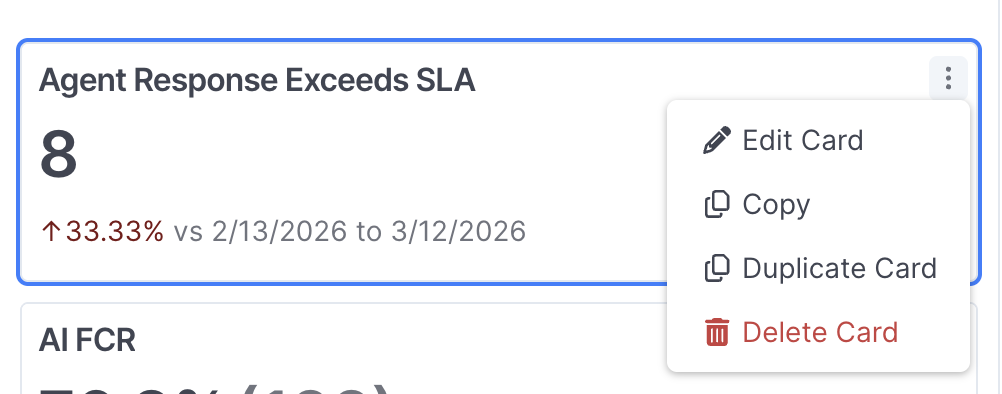
Each card has a menu in the upper right hand corner that enables the card to be edited, copied, duplicated, or deleted:
When you edit a Standard Card, the editor displays the event filter, constraints, Value, and format options, and you can change any of them. When you edit a Multi-step Card, the editor displays the steps.
Editing a Card linked to a Funnel
Editing a Card linked to a funnel provides different options than editing a non-funnel Card:
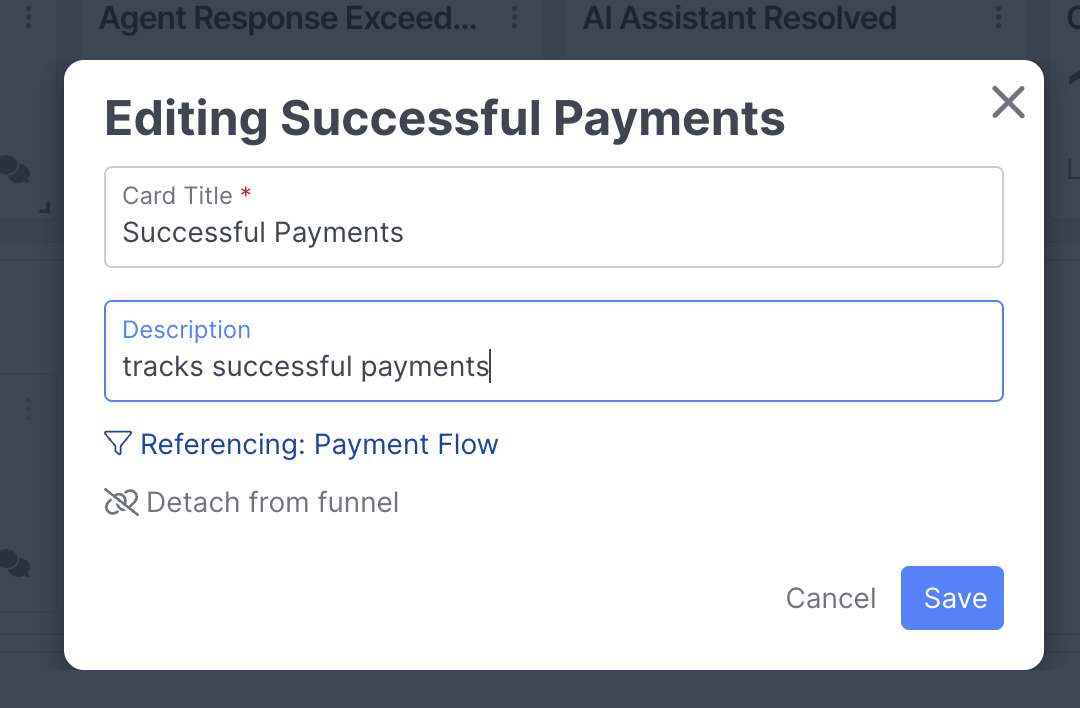
1. Card Title: The label for the card, this is separate from the label for the Funnel, and can be edited independently.
2. Description: The description for the Card, this will appear as a tooltip on the Card.
3. Funnel Referenced: The Funnel the Card is referencing, clicking this will open up the Funnel.
4. Detach from Funnel: Detaching the Card from the Funnel will open up the full Card editor.
Show Change Over Time
Standard, Multi-step, and Funnel cards all have the option to show percent change over time compared to the previous period, as well as the ability to define whether an increasing percentage should be green or red:
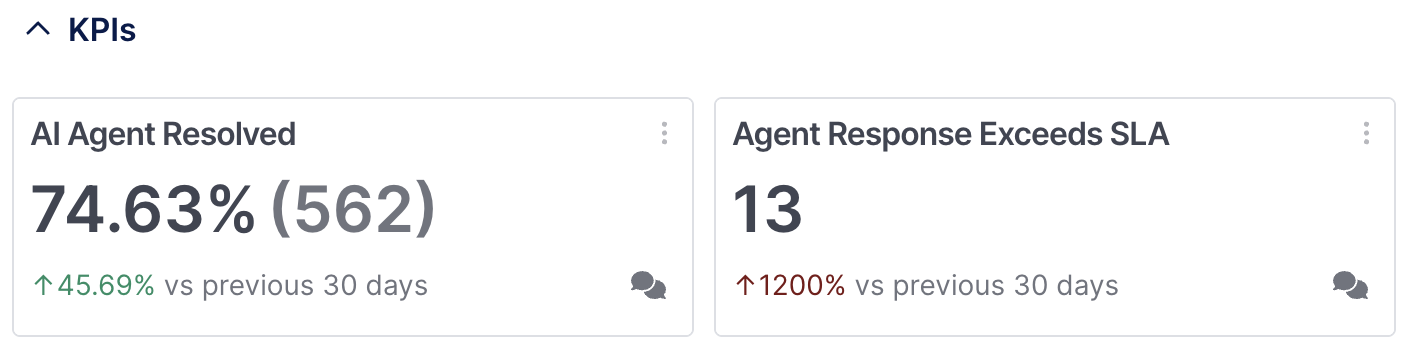
Two cards, both showing an increasing percentage compared to the prior period.
Show Rate as Primary Value
On a Multi-step Card with at least two steps, you can choose whether the rate or the count is shown as the primary value. If Show change over time is selected, the change is calculated based on the primary value.
Viewing the Conversations Behind a Card
Select the View Conversations icon on a Card to open the conversations it is based on. For a Standard Card, this returns the conversations that had an event matching the event filter and constraints. For a Multi-step Card, it returns the conversations that reached the final step:
- Each conversation lists its own value, and you can select Value to sort ascending or descending. On a Card showing average agent professionalism, a conversation scored twice lists the average of the two scores:
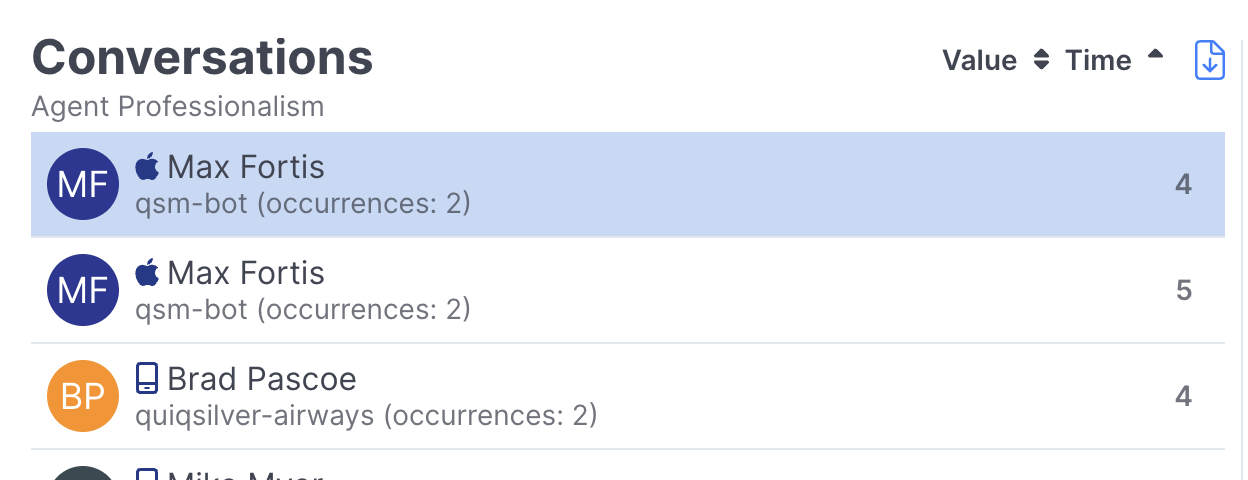
- Each conversation is listed once, even when it has several matching events, so the number on the Card can be higher than the number of conversations in the list. The number of occurrences is shown for each conversation.
- Conversation drilldown is not available for Standard Cards built on events that are not scoped to a conversation, such as Notification sent.
- Use the Export Conversations button to get a CSV export of the conversations included in the drill-down view.
Moving & Resizing Cards
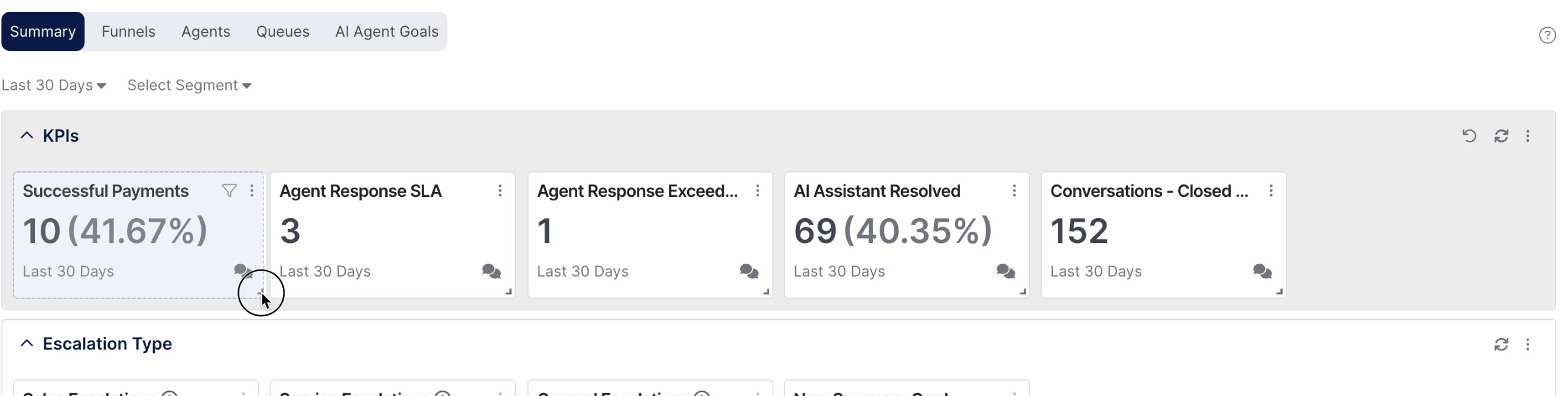
By default, a new Card will be added to the last position in a section. Cards can be reordered by dragging and dropping the card into the desired position.
Cards can also be resized by grabbing the bottom right corner and dragging:
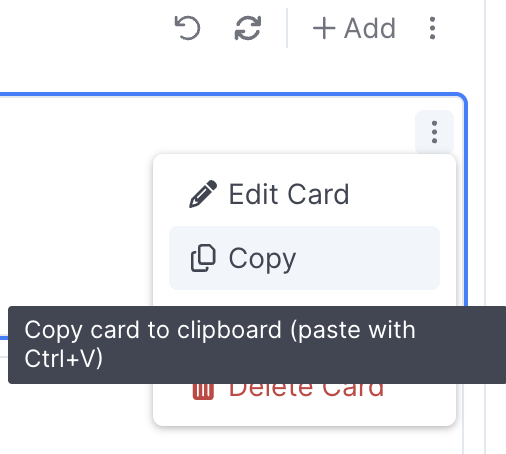
Cards and Sections can also be copied using the Copy button:
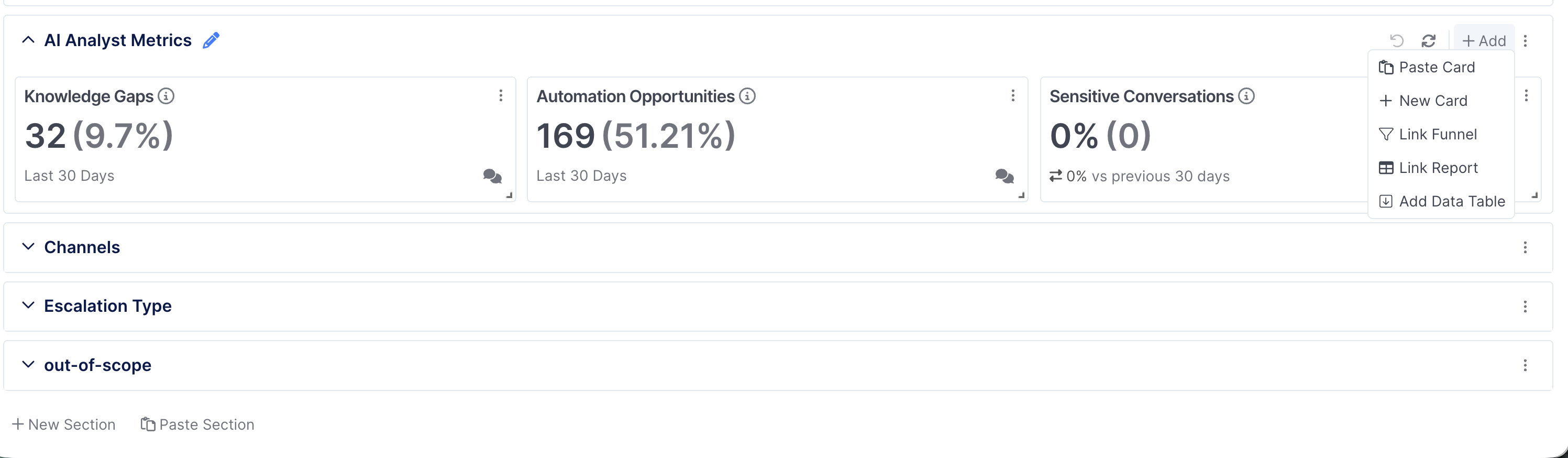
Once copied, users can paste using the Add button per section, or by using the Paste Section button below your last section:
Available Templates
The following templates are available when creating a new Card:
AI Agents
- AI Agent Influenced: See how many customers have a conversation with a given AI Agent.
- AI Agent Completed: See how many customers have a conversation that ended with a given AI Agent.
Conversations
- Conversations Closed by Human Agent: See how many conversations were closed by a human agent.
- Conversations Closed by Ai Agent: See how many conversations were closed by a AI agent.
- Conversations Closed by System: See how many conversations were closed by the system.
- Conversation Queue Escalations: See how many conversations are escalated to a given queue.
Action Tracking
- Message Link Click Rate: See how many customers are clicking on a message link.
- Payment Success Rate: See how many successful payments occur
after a payment request. - Authentication Success Rate: See how many successful authentications occur after an authentication request.
Outbound Notifications
- Notification Response Rate: See how many customers are responding to your notification topics.
- Notification Conversation Start Rate: See how many customers are starting a conversation after a notification.
- Notification Deliverability: See how many notifications are successfully delivered for a given notification topic.
- Notification Opt-outs: See how many customers are opting out for a given notification topic.
Surveys
- Survey Response Rate: See how many customers are responding to a given survey.
Updated 2 months ago