
Global Data Filters
Global Data Filters allow admins to control what data is accessible to users in the Quiq application and reports based on their role. Global Data Filters are useful for organizations that need to segment data visibility by team, region, or business unit.
Reach out to your account manager for help getting started with Global Data Filters.
Global Data Filters do not change routing behavior or who can be assigned/transferred conversations; they only control what data is visible in the UI and some exports.
How Global Data Filters Work
Access can be restricted in two main ways:
- By Contact Point: A role can be limited to only see data associated with specific Contact Points.
- Example: “EMEA Managers” can only see conversations and reports for EMEA WhatsApp and EMEA Webchat Contact Points.
- By User/Role: A role can be limited to only see data associated with users in specific Roles.
- Example: “Team Leads” can only see data for agents in the Support Agent and Senior Support Agent roles.
You can use either method by itself, or combine both. When both are used, data must match both the Contact Point restriction and the User/Role restriction to be visible.
Configuring Global Data Filters for a Role
Only Admin users can view or edit the Access tab. Staff Admins cannot change access.
Global Data Filters are configured per role in Admin > Roles on the Access tab:
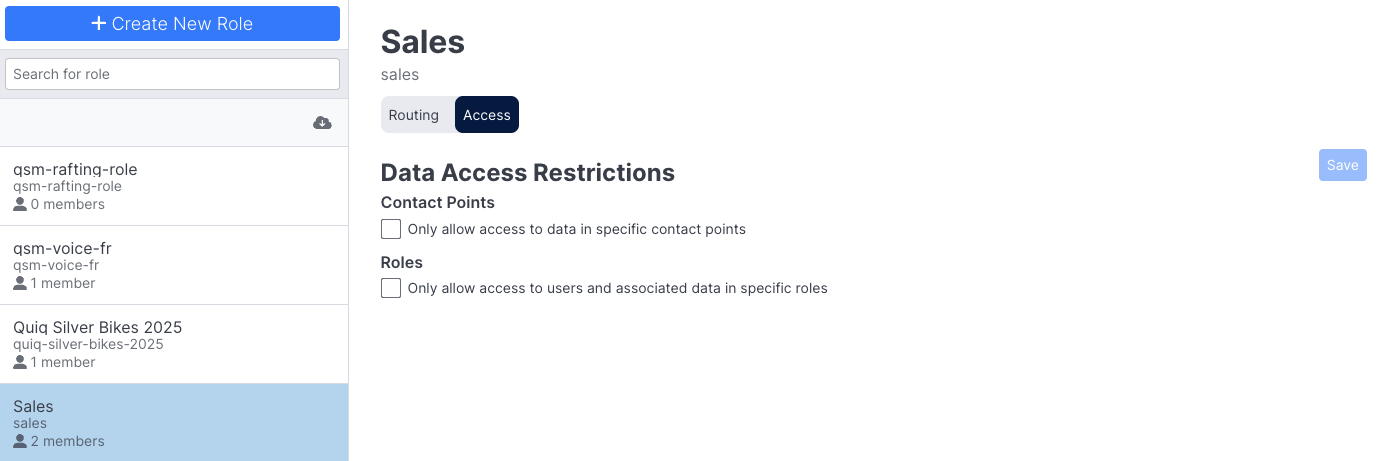
If Global Data Filters are enabled for a role, selecting the Contact Points or Roles checkbox without selecting any items will restrict access entirely on that dimension.
Users in that role will see no Contact Point data (if no Contact Points are selected) or only their own data (if no Roles are selected). If both are enabled with nothing selected, the user will see no data at all.
Restricting Access by Contact Point
If the Contact Points checkbox is enabled Admins can select multiple contact points users will have access to:
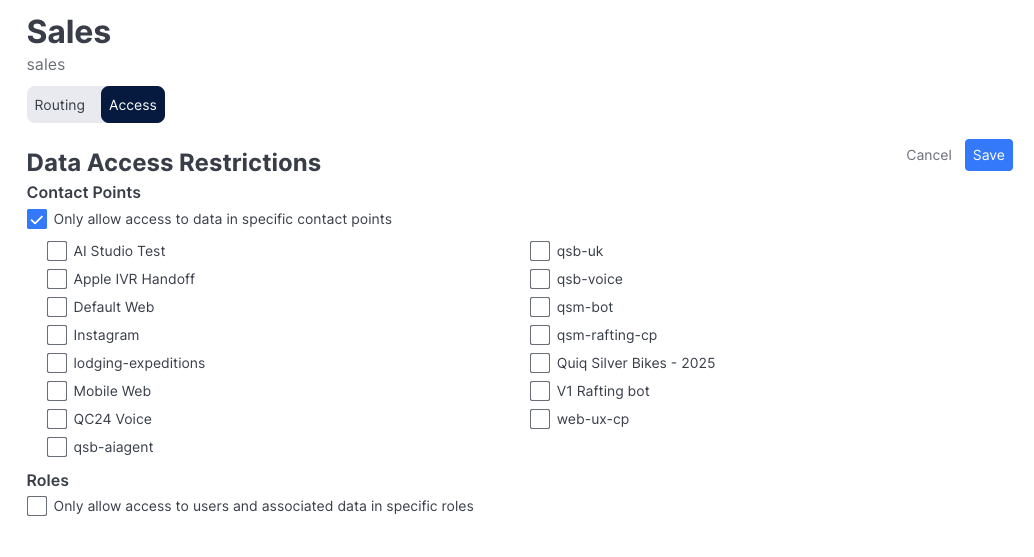
When enabled, users in a given role will only see:
- Conversations on those Contact Points
- Notifications sent from those Contact Points
- Metrics that are calculated from those Contact Points
Restricting Access by Role
If the Roles checkbox is enabled Admins can select multiple Roles users will have access to.
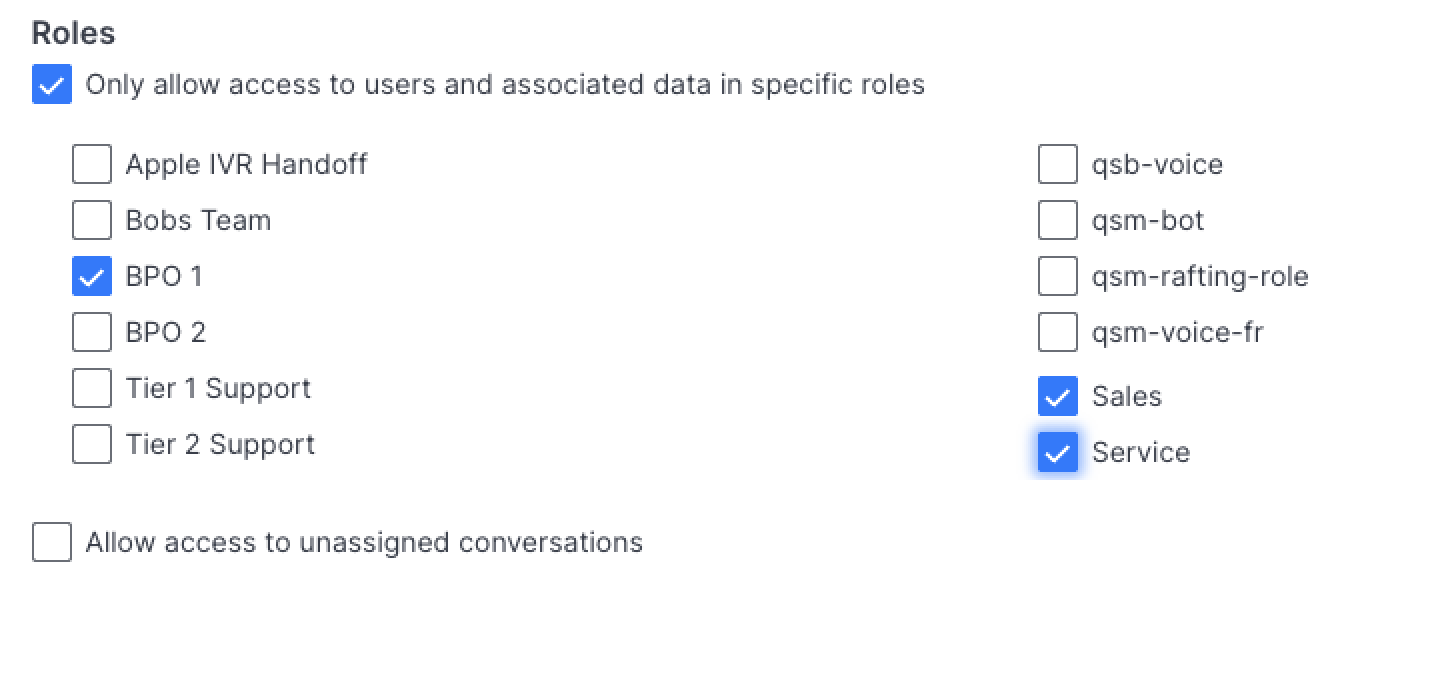
When enabled, users in this role will:
- See data for agents in the selected roles
- Always see their own data, even if their own role isn’t selected
Allow access to unassigned conversations: If checked, users can see conversations that are queued or unassigned. If unchecked, unassigned/queued conversations will not appear in places like Current Conversations.
Users with Multiple Roles
When a user has multiple roles, their access is the union of those roles:
- If any role does not restrict by Contact Point, that user is effectively not CP‑restricted.
- If any role does not restrict by Role, that user is effectively not user‑restricted.
Everyone role
Every user is always a member of the Everyone role. If a user only has the Everyone role and Global Data Filters are in use, they will effectively see no data, including their own conversations.
Make sure each user has at least one additional role with the correct access.
How Global Data Filters Apply
Agent metric, or metrics not about a specific conversation, are generally not impacted by Global Data Filters, see notes below
Below you'll find a list of how Global Data Filters apply to key sections
- Start Conversation: The Sending from list of Contact Points will only include those the logged in agent has access to.
- Agent Closed Conversations are filtered by the user’s allowed Contact Points and/or Roles, even if the agent is the owner of that conversation.
- Your Activity Summary for Today metrics do not count conversations the agent is working or closed that are associated with Contact Points to which they does not have access.
- Agents can still transfer conversations to a Contact Point they don't have access to
- Agents can still receive a conversation from a Contact Point they don't have access to.
- Agents will always see the entire transcript of a conversation routed to them.
When Global Data Filters are used, Outbound behaviors change slightly:
Send Notifications
- The Sending from Contact Point list is filtered to only show Contact Points the user has access to.
- Users cannot send notifications from Contact Points they don’t have access to.
Notification history and search
- Lists and counts may be filtered to only include notifications sent from Contact Points the user can access.
- If a user seems to be “missing” notifications, check whether their role is restricted by Contact Point.
Reporting & Insights
Today's Activity
- Customer in Queue and Agent Utilization are always global: they look the same for all users regardless of CP or Role access.
- Average Wait Time, Completed Conversations, and Avg Work Time are filtered by the user's allowed Contact Points and/or Roles.
- Active Conversations count is global: it includes all assigned conversations regardless of owner or CP.
Conversations
- Only conversations that match the user’s allowed Contact Points and/or Roles appear.
- If Allow access to unassigned conversations is enabled, queued/unassigned conversations are also visible. If not, they are hidden.
Agent Performance Today
- Conversation lists and per‑agent metrics are filtered by the user’s allowed Contact Points and/or Roles.
- Some high‑level metrics (like Customer in Queue and Agent Utilization) are remain unfiltered so operational dashboards stay consistent.
- Only conversations that match the user’s allowed Contact Points and/or Roles appear.
- CSV exports contain only the same filtered set of conversations.
Cards, Funnels, Breakdowns, and AI Agent Goals are filtered by Contact Point but are generally not filtered by agent Role, since they are based on customer activity rather than agent ownership.
When you use only Role-based restrictions (no Contact Point restriction), these views may still show all customer or AI Agent activity across all agents, even if other reports and lists are Role-filtered. This is expected, because these views are based on contact-level events rather than who owned the conversation.
- Counts and drill-downs are filtered by allowed Contact Points and, in some cases, by which agents the user can see.
- Conversation type funnels that have a CSV export option will return only conversations that the user can access.
- Conversation level data (eg Received, Completed) will only count the conversation activity that the user can access.
- The Agent Performance Export Data will also only count that data that was done on Contact Points to which the user has access.
- None of the counts in any charts will include data from conversations that are associated with CPs that the logged in user does not have access to.
- Surveys are filtered by Contact Point when CP restrictions are used
- Are filtered by agent role when user/role restrictions are used
- Older survey submissions (from before Contact Point was stored on survey responses) will not appear for users who are restricted by Contact Point. This can make historical Feedback data look incomplete for CP-restricted users.
- When you use Role-based restrictions, survey results from bot-only or unassigned conversations are treated as unassigned. They are only visible if the user’s role is configured to Allow access to unassigned conversations.
FAQs
Why do my queue‑level or volume metrics still look “global”?
Some metrics are intentionally not filtered so operational dashboards stay consistent for everyone. For example (depending on the report):
- Customer in Queue
- Agent Utilization
- Some Messages Sent totals
- Agent status metrics
Even if a manager’s drill‑downs and conversation lists are filtered, these top‑level numbers may still include all queues and all agents.
The UI shows X conversations, but my CSV export has more or fewer rows. Is that a bug?
Not necessarily. Different exports handle filters differently:
- Some exports match the UI exactly (filtered by Contact Point and/or Role).
- Some exports are filtered by Contact Point only.
- Some exports are filtered by Role only.
- Some exports are not filtered at all and always include global data.
- If counts don’t line up, check:
- Which export you’re using
- Whether that export is documented as CP‑filtered, Role‑filtered, both, or unfiltered.
How does “Allow access to unassigned conversations” change what my users see?
This only matters when you’re using Role‑based filtering:
-
Checked:
- Users can see queued/unassigned conversations in places like Current Conversations.
- Users can see survey results for bot‑only conversations that aren’t tied to an agent.
-
Unchecked:
- Unassigned/queued conversations won’t appear in those Role‑filtered views.
It does not change how conversations are queued or routed, only whether those items are included in filtered lists and reports.
Why do some Insights and AI Agent views ignore agent Role filters?
Many Insights and AI Agent views are based on customer or AI Agent activity, not agent ownership. As a result:
- When you use Contact Point filters, those views are usually CP‑filtered.
- When you use only Role‑based filters, some of those views:
- Still show all contact/AI Agent activity (not filtered by which agent worked it),
- While agent‑centric lists and reports remain Role‑filtered.
If someone sees “too much” in an Insights or AI Agent view, check whether their restriction is based solely on Roles and not on Contact Points.
I turned on filters and now a user sees nothing. What should I check first?
Check for these three issues:
- They only have the Everyone role
- If Global Data Filters are in use and a user only has Everyone, they’ll effectively see no data, even their own.
- Contact Points filter is on, but no CPs selected
- Result: no CP access at all; lists and reports may be empty.
- Roles filter is on, but no roles selected
- Result: the user can generally see only their own data (no other agents). If any of those are true, adjust the roles or selections and have the user refresh.
A manager has two roles. Why are their filters not working as expected?
When a user has multiple roles, access is the union of all their roles. Common surprises:
- If any of their roles does not restrict by Contact Point, they’re effectively not CP‑restricted.
- If any of their roles does not restrict by Role, they’re effectively not user‑restricted.
If a manager seems to see “too much,” look for:
- A broad role like “Global Manager” or “Admin” with no restrictions
- A role where one of the checkboxes (Contact Points or Roles) is left off intentionally
Updated 6 months ago