
Message Content Sources
Build a Breakdown that shows where the text in your human agents' messages comes from.
Overview
This Breakdown shows where the text in your human agents' messages comes from: Snippets, personal Snippets, AI Assistant suggestions, the clipboard, extensions or typing. It also shows how many agents use each source, and how quickly they reply and type with each one.
Quiq records where message content comes from starting October 31, 2026, so set the report's date range to start on or after that date.
Creating your Report
1. Navigate to Reports > Insights > Breakdowns and click + New Report.
2. On the Agent message authored event, break the report down by event.contentSource, and click Create.

The report shows Count and % of Total for each content source.
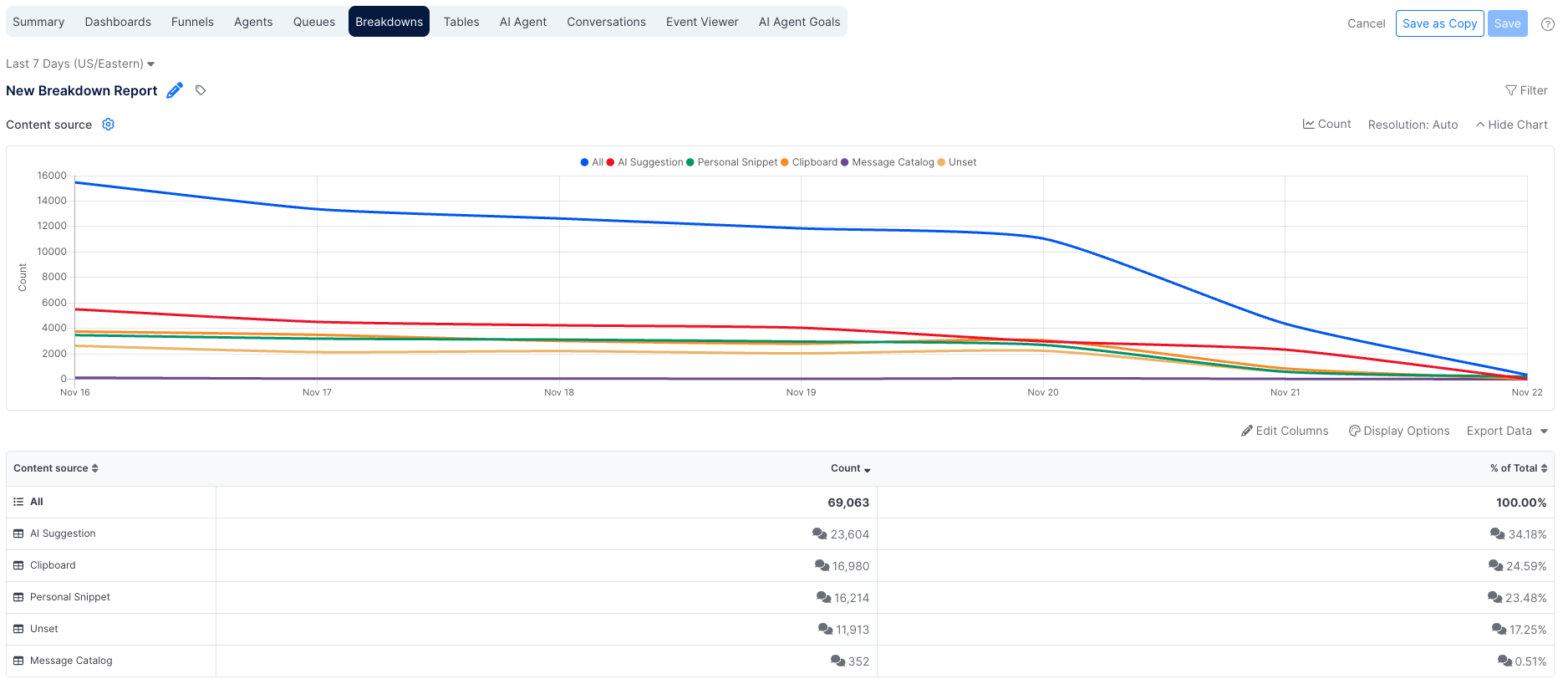
The content sources are:
- Message Catalog: shared Snippets.
- Personal Snippet: agents' own Snippets.
- AI Suggestion: AI Assistant suggestions.
- Clipboard: text the agent pasted.
- Extension: text inserted by an extension.
- Unset: messages the agent typed.
Adding Columns
For each column below, click Edit Columns > + Add Column, fill in the fields, and click Apply.
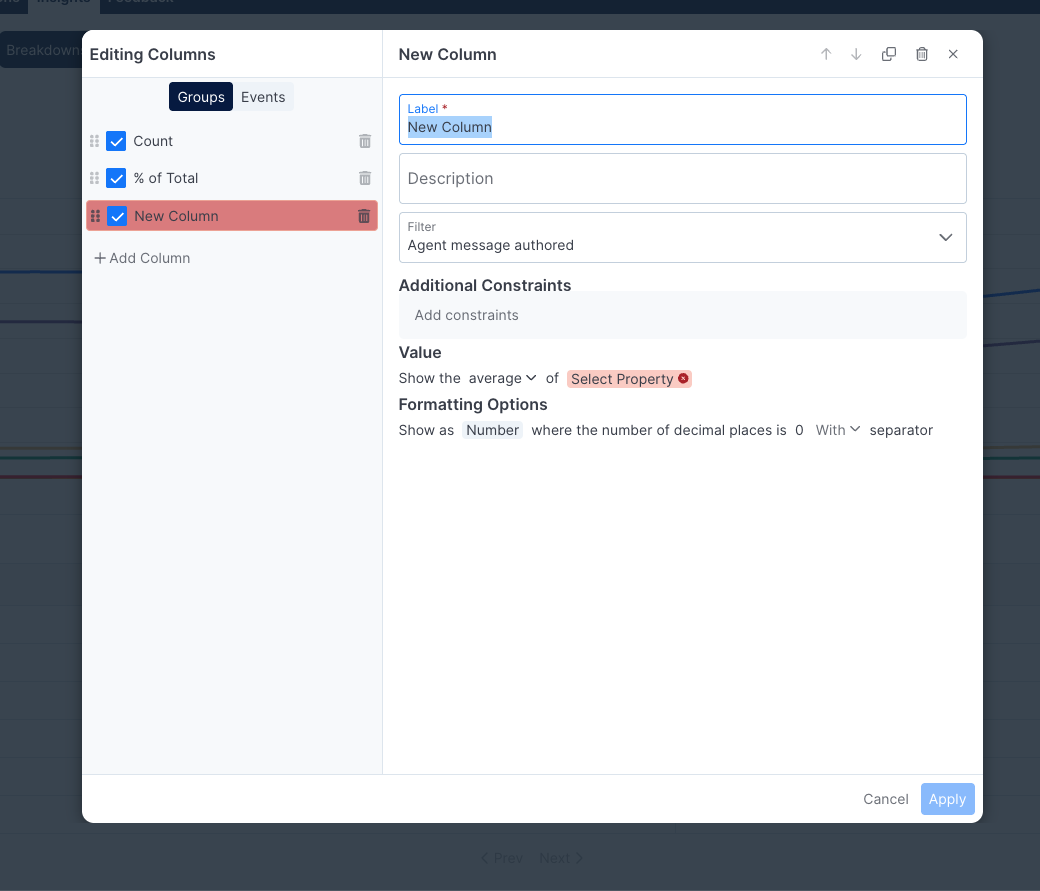
Every column uses these fields:
- Label: the column name in your report.
- Filter: leave it on Agent message authored.
- Additional Constraints: limits which messages the column counts. Most columns leave it empty.
- Value: what the column calculates. Choose a calculation, such as average, then click Select Property and choose the field.
- Formatting Options: how the number is shown, such as a number, a percent or a duration.
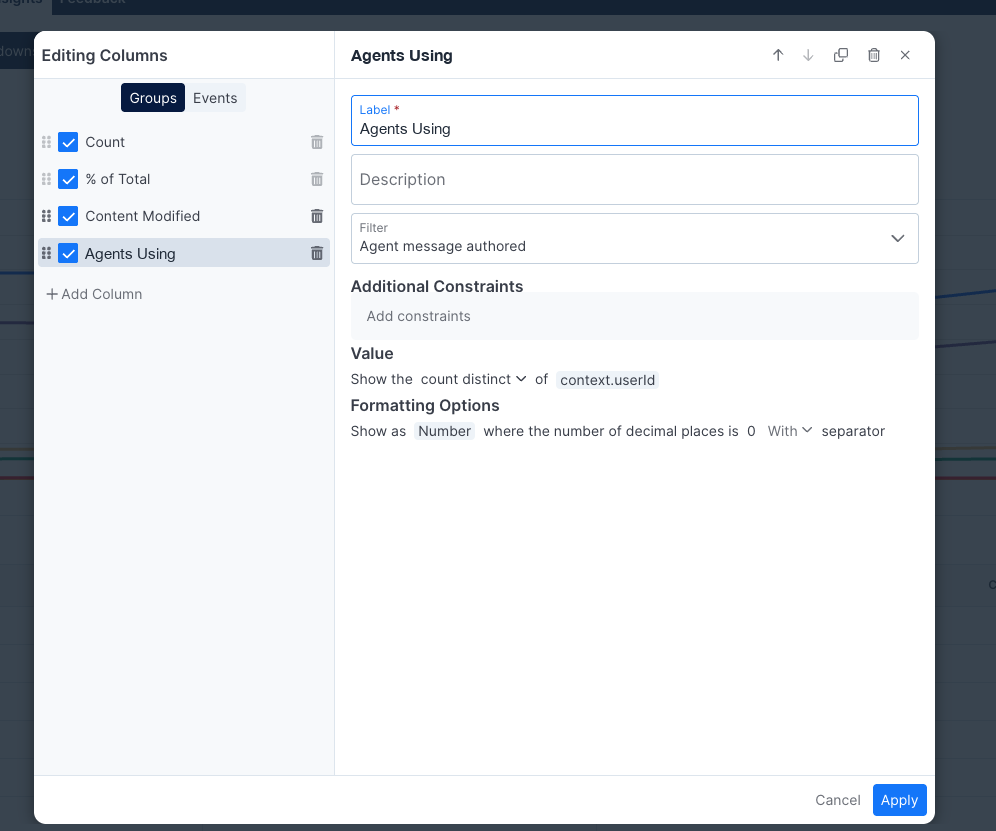
Agents Using
How many agents use each source.
- Label: Agents Using
- Value: Show the count distinct of
context.userId, the agent who sent the message.
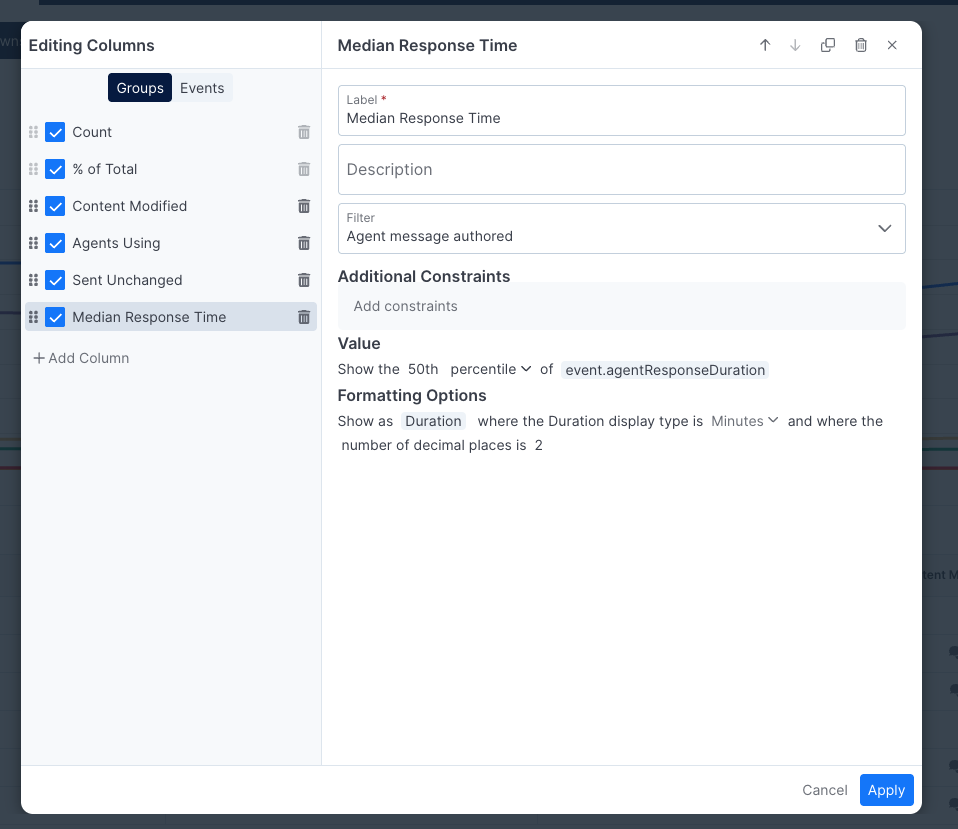
Median Response Time
How long agents take to reply when they use each source.
- Label: Median Response Time
- Value: Show the 50th percentile of
event.agentResponseDuration. - Formatting Options: Show as Duration in Minutes with 2 decimal places.
Median Typing Time
How long agents spend typing when they use each source.
- Label: Median Typing Time
- Value: Show the 50th percentile of
event.typingTime. - Formatting Options: Show as Duration in Minutes with 2 decimal places.
Use the 50th percentile (the median) for times. A few slow replies can pull an average far from what's typical.
Characters by Source
How many characters agents sent from each source. One message can mix sources, for example a Snippet the agent then types into. Add one column for each source you want to compare, with Value set to Show the sum of the field:
| Column | Field |
|---|---|
| Typed Characters | event.totalKeyboardCharacters |
| Pasted Characters | event.totalClipboardCharacters |
| Snippet Characters | event.totalSnippetCharacters |
| Quiq Compose Characters | event.totalQuiqComposeCharacters |
| Extension Characters | event.totalRhsExtensionCharacters |
Using your Report
Rename the report, for example "Message Content Sources", and click Save.
Click any row to see the messages behind it. The Event List shows each message as it was loaded and as it was sent. Because this is message text, it can include customer details, so leave the Event List out of reports and screenshots you share.
To see how often agents send AI Assistant suggestions as written, add the columns in AI Suggestion Adoption. To see which Snippets agents use, see Snippet Usage.
Updated 2 days ago