
ChatGPT and Codex
The AI Connector works in ChatGPT and in Codex. You can follow the steps below, or send ChatGPT or Codex the link to the connector skill and ask it to set up the Quiq connector. It walks you through the steps and can do many of them for you.
Before you start
You need:
- A Quiq admin login.
- Your Quiq web address, for example
yourcompany.goquiq.com. Use the address you sign in with; some addresses redirect to another one, and the connector works with either.
What your IT team may need to allow
ChatGPT runs commands in a cloud workspace. If your organization limits that workspace's network access, an admin of your ChatGPT workspace (usually IT, not your Quiq admin) may need to allow *.goquiq.com for that workspace.
Codex running on your computer needs no change.
Set up
-
Download the connector skill. Create a folder named
quiq-login, put the file in it, and rename the fileSKILL.md. -
Add the skill. For details, see OpenAI's Build skills documentation.
- Codex (CLI or IDE extension): move the
quiq-loginfolder into~/.agents/skills/. Codex picks it up automatically; if it doesn't appear, restart Codex. Run/skillsto check it's there. - ChatGPT: open Skills (next to Plugins), click Add, then Upload from your computer, and upload the zipped
quiq-loginfolder or theSKILL.mdfile. ChatGPT only accepts a.zipfile, a.skillfile, or a file named exactlySKILL.md.
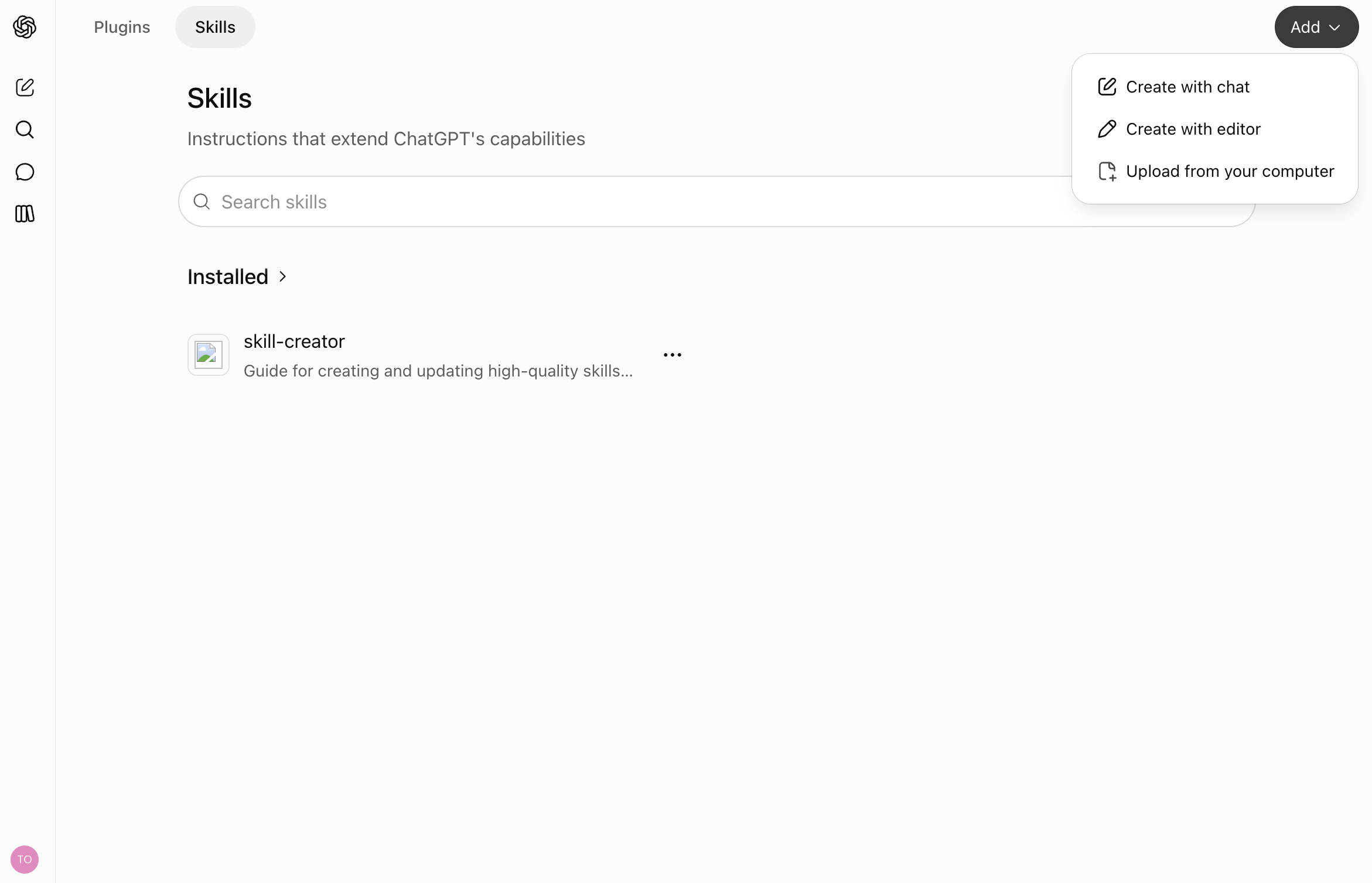
The file must be named exactly
SKILL.md. If ChatGPT shows "Choose a .zip, .skill, or SKILL.md file", rename it and upload it again. Then check that quiq-login appears under Installed. - Codex (CLI or IDE extension): move the
-
Click Try in chat on the skill, or start a new chat, and ask ChatGPT to connect to Quiq, for example: "Use the Quiq connector to connect to yourcompany.goquiq.com." It installs the connector if needed and gives you an Approve Quiq access link. Open it, sign in to Quiq, choose what ChatGPT can access, and click Approve. In Codex, the connector runs on Node.js; if your computer doesn't have it, Codex helps you install it.
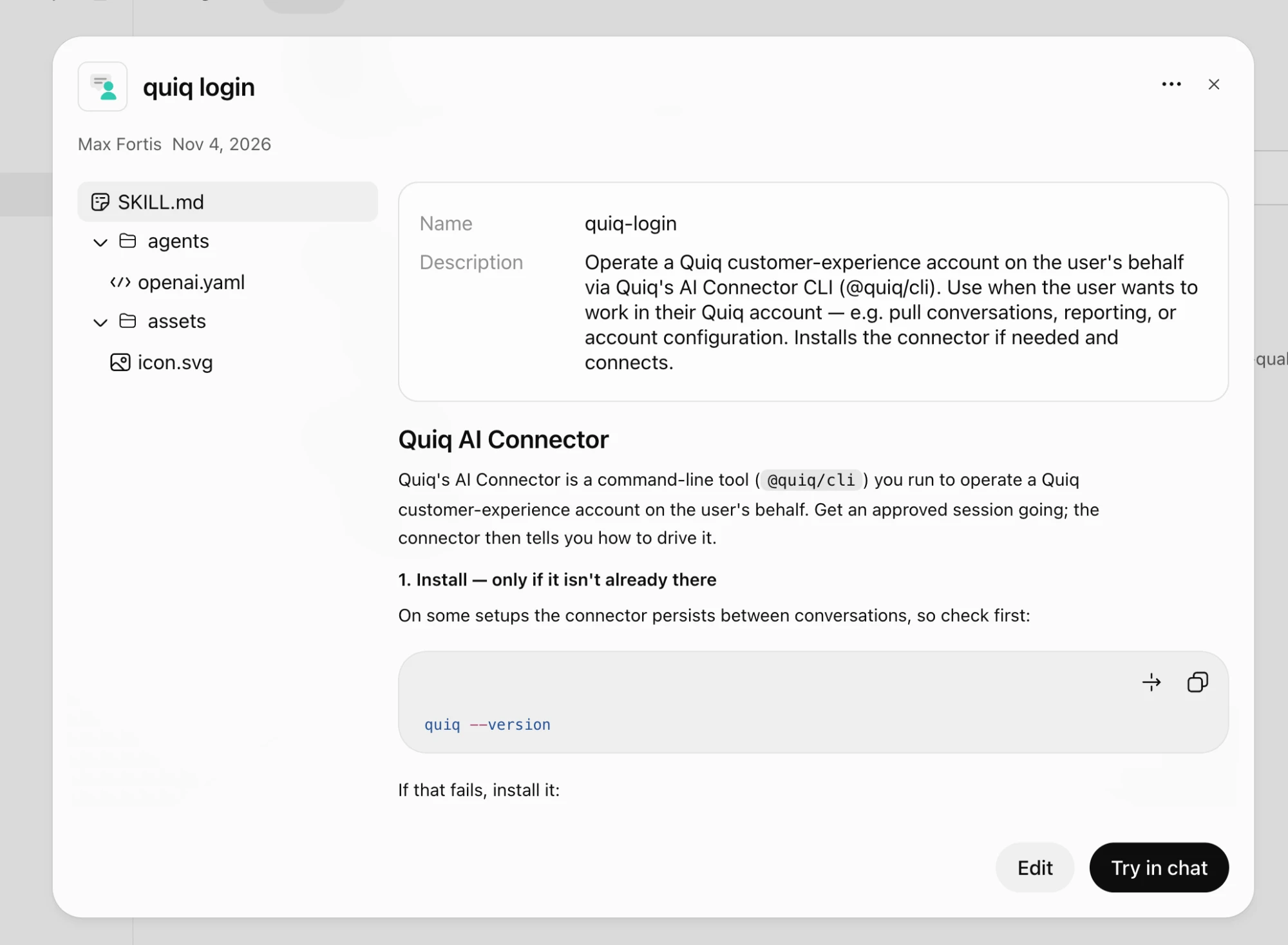
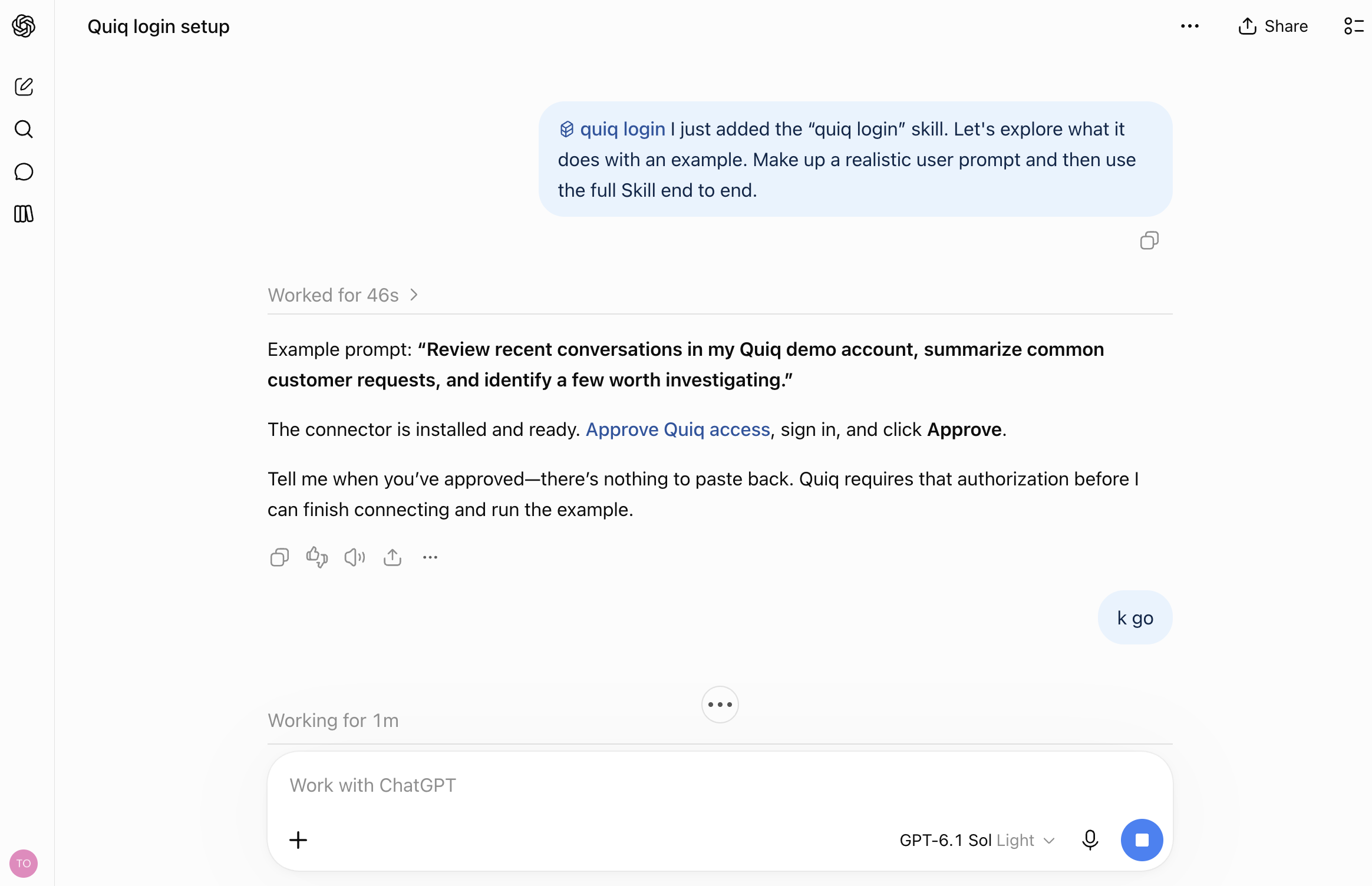
Then ask your first question. See AI Connector Tips & Examples for ideas.
Need help?
For help, or if your AI tool isn't listed, email [email protected].
Updated 1 day ago