
Google Antigravity
The AI Connector works in Google Antigravity, in the desktop app and in the agy CLI. You can follow the steps below, or send Antigravity the link to the connector skill and ask it to set up the Quiq connector. It walks you through the steps and can do many of them for you.
Before you start
You need:
- A Quiq admin login.
- Your Quiq web address, for example
yourcompany.goquiq.com. Use the address you sign in with; some addresses redirect to another one, and the connector works with either.
What your IT team may need to allow
Most Google accounts can sign in to Antigravity the first time. If your company blocks unreviewed third-party apps, a Google Workspace admin approves it in the Google Admin Console under Security > Access and data control > API controls > Apps pending review, and sets it to Trusted or Limited for your organizational unit.
Set up in the Antigravity app
-
Add the skill as a plugin. For details on skills, see Google's Authoring Google Antigravity Skills guide. In Antigravity, start a new conversation. Attach the file you downloaded, type
/pluginto choose the plugin skill, and send. Antigravity creates a Quiq plugin from the file and asks you to allow each file it writes; allow them.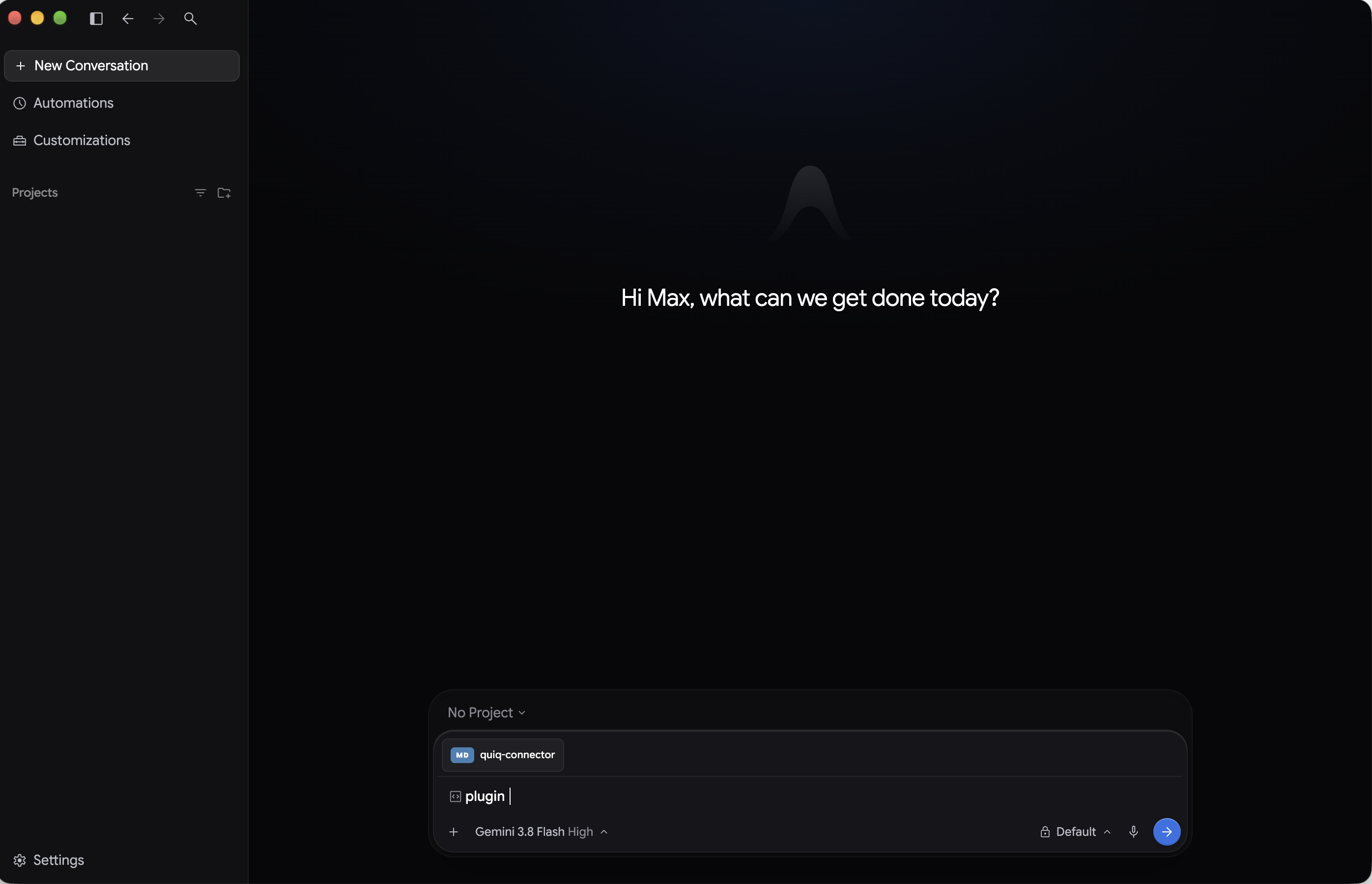
You can also add the skill without a plugin: create a folder named
quiq-loginin~/.gemini/config/skills/, save the downloaded file in it asSKILL.md, and restart Antigravity. -
In a new conversation, type
/quiq-login, ask Antigravity to connect your Quiq account, and send. Antigravity asks before each command it runs, including installing the connector. Allow them, or choose Yes, and always allow 'quiq'. The connector runs on Node.js; if your computer doesn't have it, Antigravity helps you install it.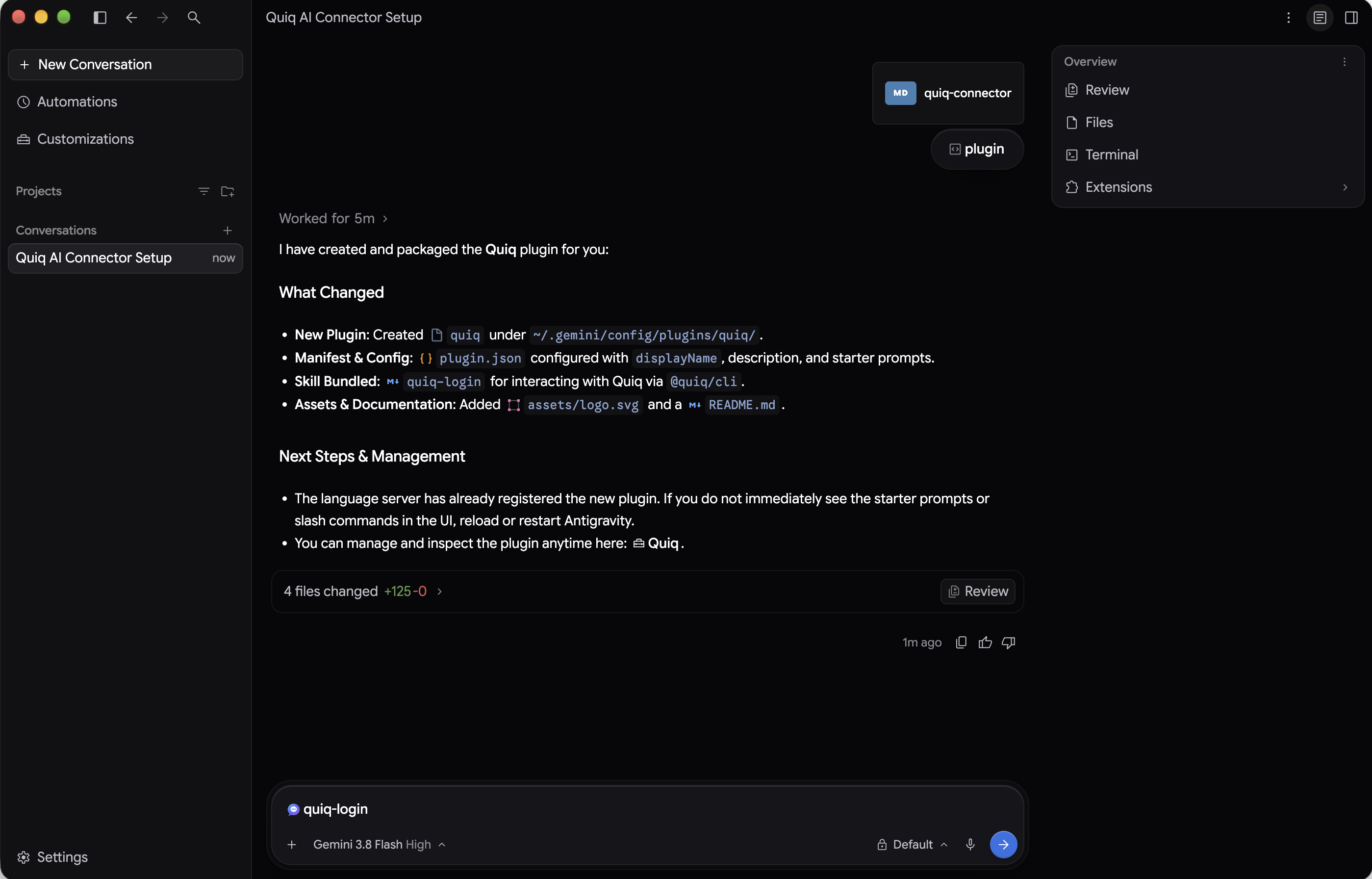
-
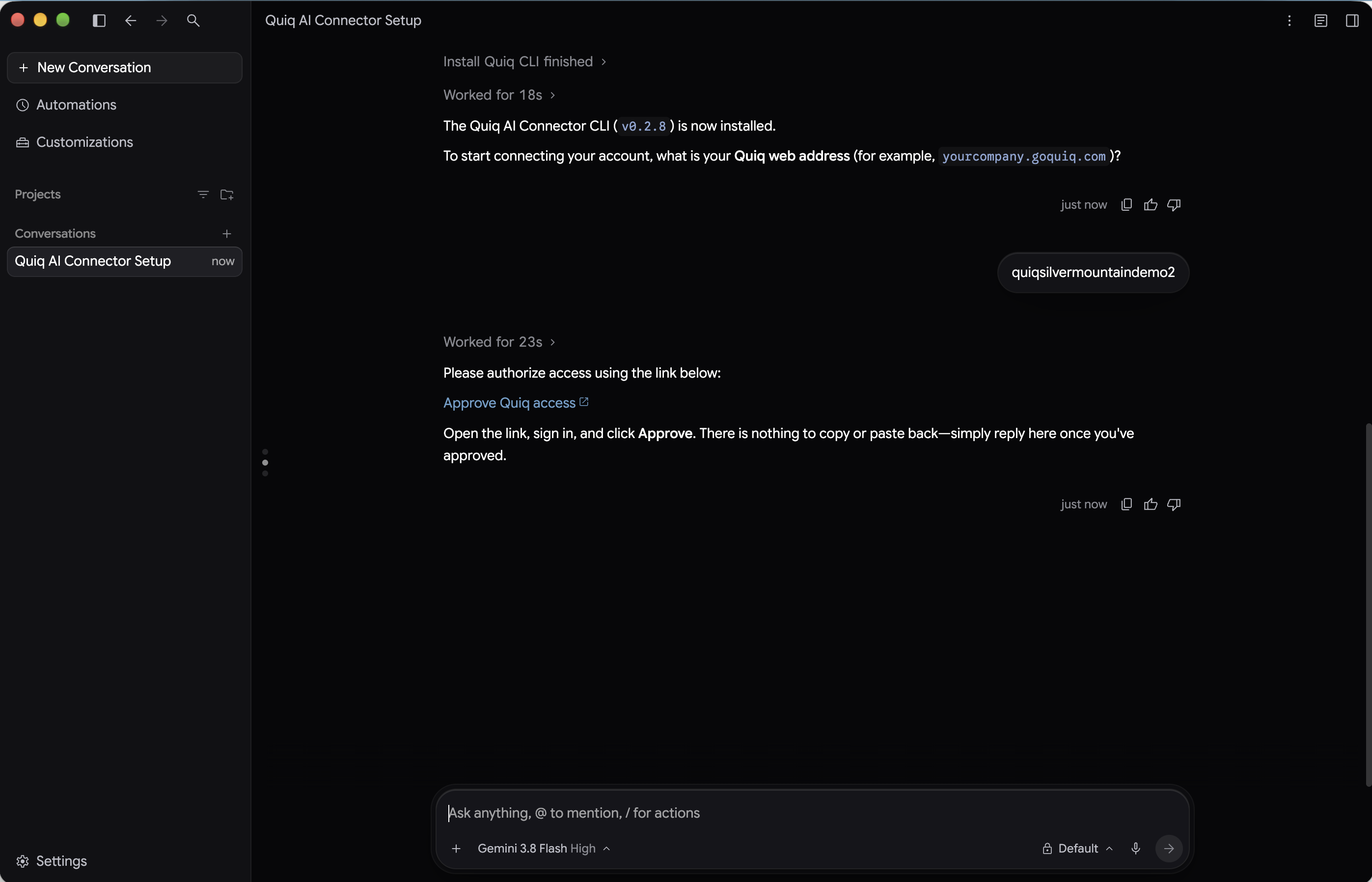
Enter your Quiq web address when Antigravity asks for it. Open the Approve Quiq access link, sign in to Quiq, choose what Antigravity can access, and click Approve. Then reply that you've approved.
-
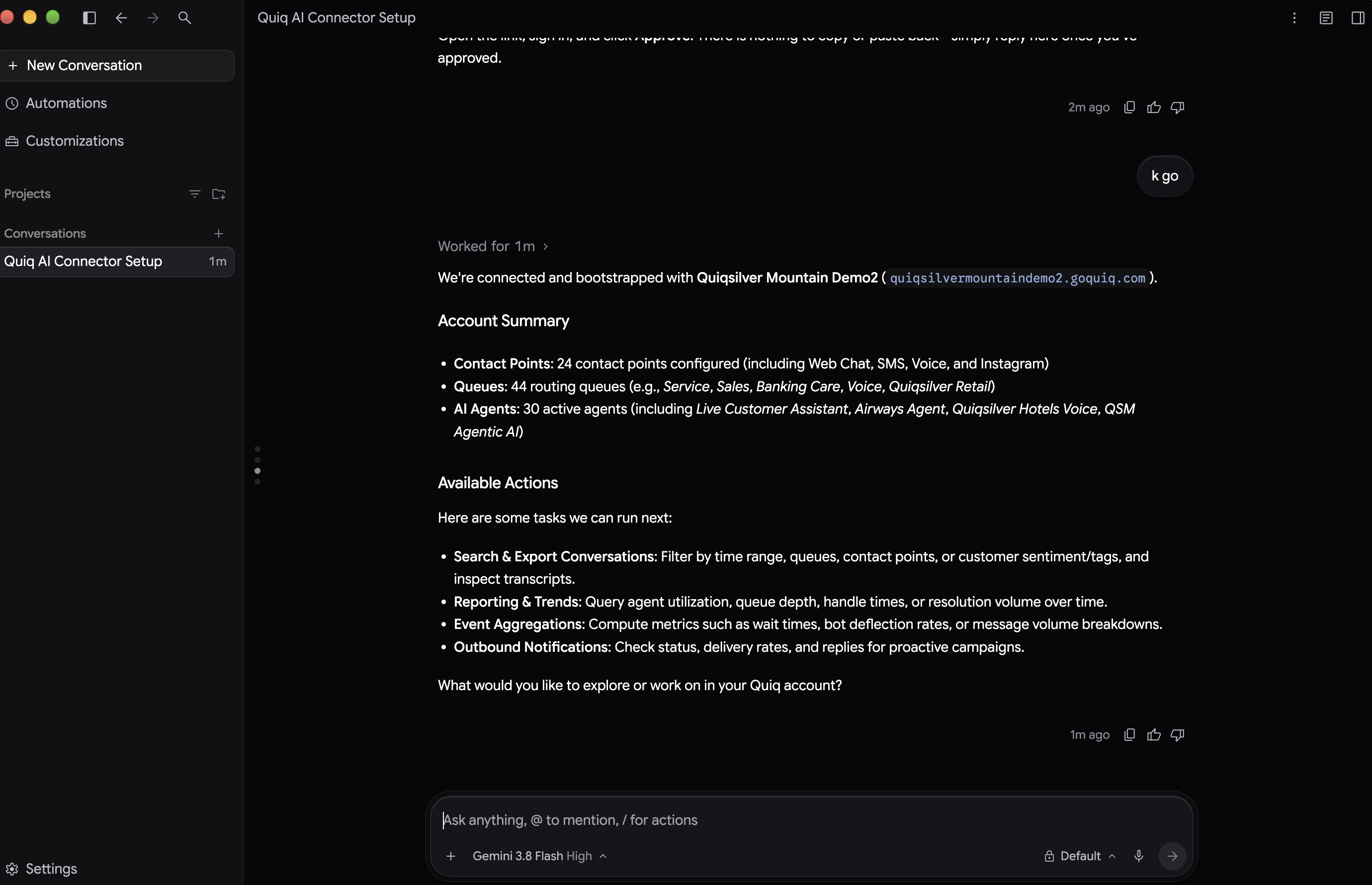
Antigravity connects and summarizes your Quiq account. Ask your first question. See AI Connector Tips & Examples for ideas.
Set up in the Antigravity CLI
- Install the Antigravity CLI. On Mac, in Terminal:
curl -fsSL https://antigravity.google/cli/install.sh | bash. On Windows, in PowerShell:irm https://antigravity.google/cli/install.ps1 | iex - Install the connector:
npm install -g @quiq/cli - Type
agyto start Antigravity. It opens your browser so you can sign in with your Google account. - At the
agy>prompt, ask: "Use the @quiq/cli to connect to my Quiq workspace and give me the login link." Open the Approve Quiq access link, sign in to Quiq, choose what Antigravity can access, and click Approve.
Need help?
For help, or if your AI tool isn't listed, email [email protected].
Updated 1 day ago