---
updatedAt: 2025-11-13T21:13:31.000Z
agentTools:
projectIndex: https://knowledge.quiq.com/llms.txt
---
# Closed Conversations
## Overview
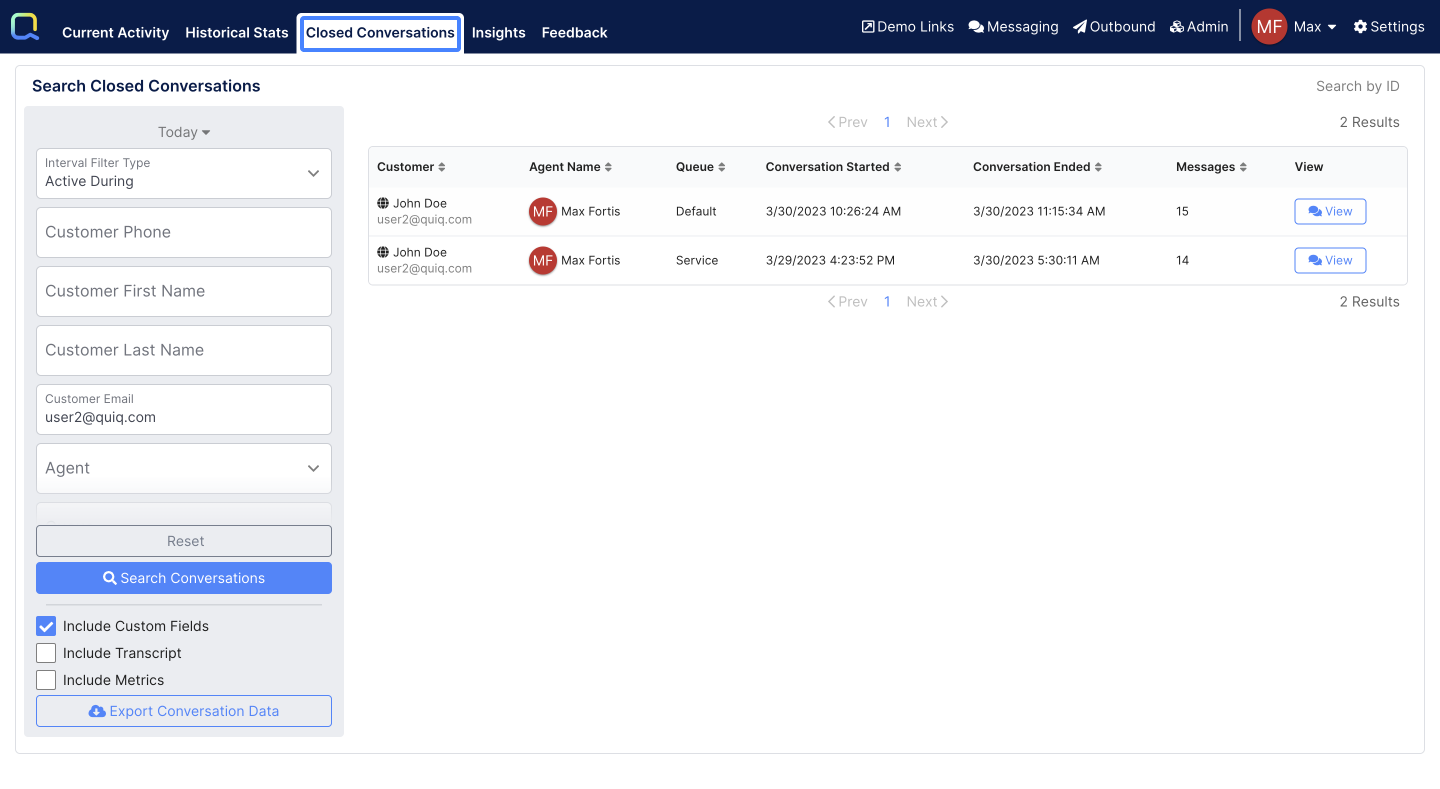
Closed Conversations provides a manager the capability to search through all closed messages for a specific conversation given the parameters entered.
> 📘 Additive Parameters
>
> Note that parameter selections are additive, so any results must match all selected parameters. More parameters yields fewer results.
Conversations returned are listed on the right side of the page. Use the view button beside each conversation to preview the messages sent in the conversation.
> 📘 Agent Segments
>
> In order for Agent Segments to show up, you'll need to enable them in Current Conversations. [Learn more](https://knowledge.quiq.com/docs/current-activity-tab#agent-segments)
## Search by CRM Integration Reference or Conversation ID
For tenants integrated with [Oracle Service Cloud](https://knowledge.quiq.com/docs/oracle-integration-overview), [Salesforce](https://knowledge.quiq.com/docs/salesforce), [Zendesk](https://knowledge.quiq.com/docs/zendesk-integration-guide), or [Microsoft Dynamics Setup](https://knowledge.quiq.com/docs/microsoft-dynamics-setup), the **Search by ID** button in the top right of the screen includes an additional CRM specific field that enables users to search by that ID.
> 📘
>
> Please note all searches must be exact matches for the relevant ID or Identifier, neither the Conversation ID search or the CRM specific search support wildcards or partial matches.
> 📘 Search Conflicts
>
> If a Conversation ID and a CRM specific reference are both inputted into the Closed Conversations search, the conversation associated with the Conversation ID will be returned by default.
### Zendesk
For tenants integrated with Zendesk, users can search using either a Quiq **Conversation ID**, or a Zendesk **Ticket ID**:
### Oracle
For tenants integrated with Oracle, users can search using either a Quiq **Conversation ID**, or an Oracle **Incident ID** or **Reference Number**:
### Salesforce
For tenants integrated with Salesforce, users can search using either a Quiq **Conversation ID**, or a Salesfroce **Case ID**, **Case Number**, or **Lead ID**:
### Microsoft Dynamics
For tenants integrated with Microsoft Dynamics, users can search using either a Quiq **Conversation ID**, or a Microsoft Dynamics **Case ID**, **Case Number**, or **Task ID**:
## Exporting Conversation Search Results
The conversation search results may be exported to a CSV file. Ensure that the displayed conversations are the results desired for the destination csv file. Note that the checkbox options of custom fields and transcript (conversation messages) are not included by default. Check these options to include them in the export. Click the Export Conversation Data button and note the warning. When the results file is generated, it will automatically download in the browser, to the default download location.